

“`html
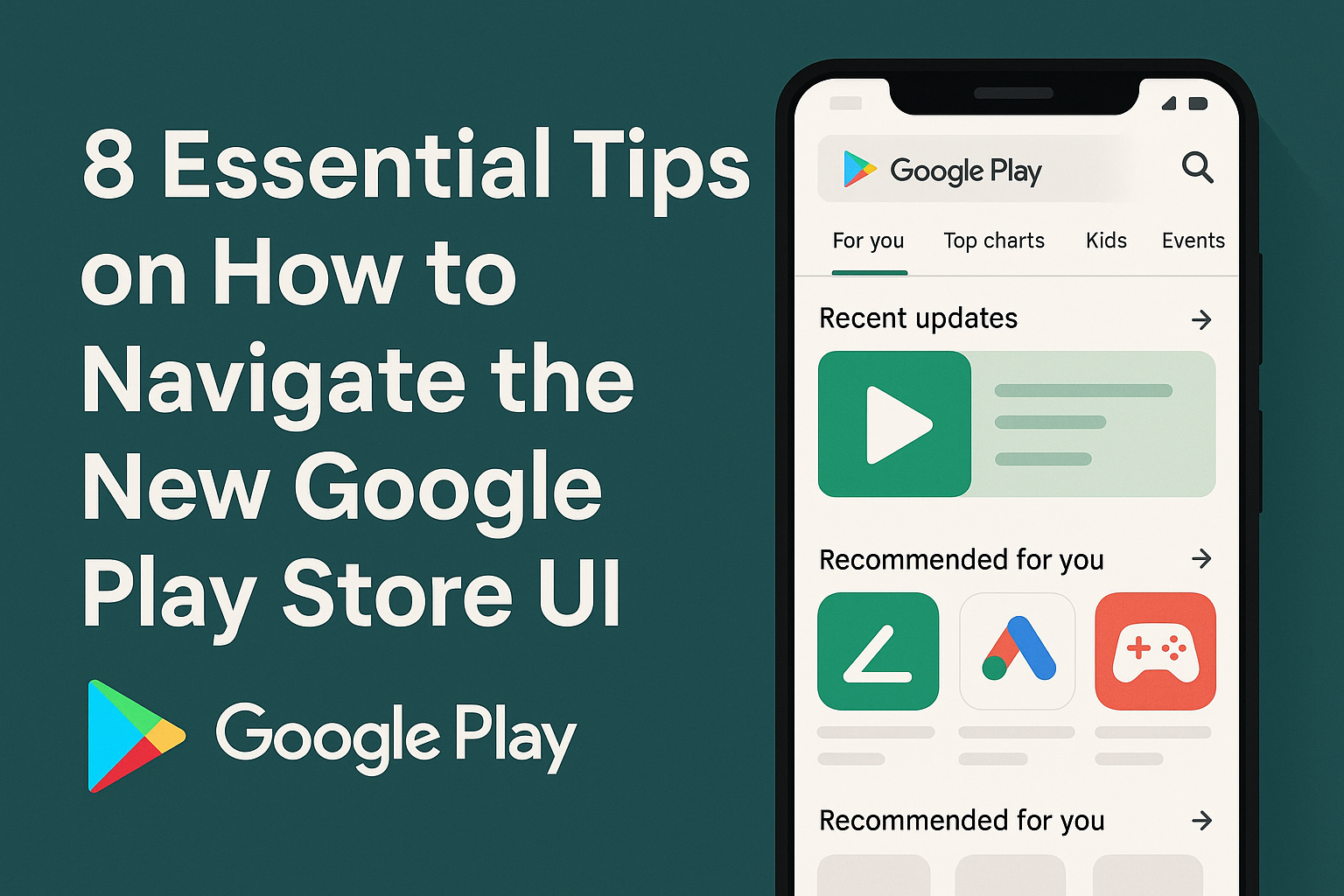
The recent redesign of the Google Play Store has left many users both curious and frustrated. With a surge in search queries indicating a 110% increase in interest, it’s clear that millions are eager to understand how to navigate the new Google Play Store UI. If you’ve found yourself feeling lost amid the changes, you’re not alone. In this guide, we’ll walk you through eight essential tips to help you effectively navigate this revamped interface and make the most of your app store experience.
1. Understanding the New Layout
The most immediate change you’ll notice is the new layout, which prioritizes a cleaner, more organized look. This redesign segments features into distinct categories, but for many, this means familiar elements have been relocated. The home screen now emphasizes recommended apps and games, tailored to your usage, which can help you discover new downloads more easily. However, it also requires users to adjust and familiarize themselves with the updated grouping.
In the previous UI, important categories like ‘Top Charts’ and ‘Categories’ were prominently placed, allowing users to quickly find what they were looking for. Now, you’ll need to explore the bottom navigation bar where you’ll find Home, Apps, Games, and more. If you’re used to the previous setup, this might take some getting used to, but it’s aimed at simplifying the browsing experience.
2. Finding Your Favorite Apps
For those who regularly use particular apps, the search function remains your best friend. Although the UI has changed, the search bar is still easily accessible at the top of the homepage. Simply tap on the search icon, and you can type in the name of the app you want. Additionally, you can use voice commands by tapping the microphone icon, a feature that users often overlook.
You can also browse through sections like ‘My Apps & Games’ found in your profile menu. This section lists your previously downloaded apps, which is a reliable way to access familiar tools without having to scroll through the new interface. The key is to utilize the search and profile functions to find your essential downloads quickly.
3. Exploring Top Charts and Categories
Previously, the Top Charts feature was front and center, making it easy to see the most popular applications at a glance. In the new setup, you’ll find these sections tucked under the ‘Apps’ and ‘Games’ tabs located in the navigation bar at the bottom. Click on ‘Apps’ or ‘Games,’ and there you’ll discover an assortment of top-rated and trending applications.
This change may seem like a minor adjustment, but it has sparked considerable confusion among users accustomed to the old layout. The rearrangement aims to streamline how users access different categories, so take the time to explore these new areas to ensure you stay up to date with popular apps and games.
4. Utilizing Filters for Easier Navigation
Another helpful feature that can ease the navigation of the new Google Play Store UI is the filtering option. Once you tap on ‘Apps’ or ‘Games,’ you will see various filter options that allow you to narrow down your search based on age rating, genre, and more. This can be especially useful if you’re looking for family-friendly content or specific genres like action or education.
By using these filters, you can quickly hone in on what interests you the most, saving you the hassle of sifting through hundreds of irrelevant options. To access these filters, simply tap on the ‘Sort by’ option, which is usually located at the top right corner of the respective category screen. (See: Wikipedia page on Google Play Store.)
5. Dealing with Download Issues
With any major update, users often encounter download issues. If you find that your apps aren’t downloading or updating as intended, first check your internet connection. A weak or unstable connection can cause downloads to fail or lag indefinitely. If your connection is fine, you may need to clear the Google Play Store cache. To do this, head to your device settings, select ‘Apps,’ locate Google Play Store, and then tap ‘Clear Cache.’
If problems persist, consider restarting your device, which can resolve temporary software glitches that might be affecting app downloads. This approach has helped countless users in the past and should be one of your first troubleshooting steps.
6. Customizing Your Experience
Beyond searching for apps and managing downloads, the new UI also allows for some customization. You can curate your app lists based on preferences, making it easier to access frequently used applications. In your profile menu, you can find settings that let you manage app notifications and preferences, ensuring you’re only alerted about what you care about.
Additionally, keep an eye out for suggestions that appear based on your download history. If you frequently download fitness apps, for example, Google Play will recommend similar apps that may interest you. This personalized touch is intended to enhance your experience by making relevant suggestions without having to search extensively.
7. Engaging with Community Reviews
The redesign also emphasizes user engagement through app reviews and ratings. The review section has been enhanced, making it simpler for users to read and leave feedback. As you explore apps, take the time to check out reviews; they can provide invaluable insights into an app’s performance, usability, and potential issues before you download.
Don’t hesitate to contribute your own reviews, too. Sharing your experiences can help others navigate the store and inform developers about what users love or dislike about their applications, fostering a better overall environment within the platform.
8. Staying Updated with Google Play Changes
With the Google Play Store continually evolving, staying informed about updates is crucial. Check Google’s official blog or technology news outlets for announcements about further changes or new features. User feedback is a significant driving force behind these updates, and knowing what’s coming can help you prepare for adjustments that may affect your navigation.
Also, actively participating in discussions on social media platforms can enrich your understanding of the changes. Many tech enthusiasts share insights and tips that could prove beneficial, offering a community-driven approach to help everyone adapt more efficiently.
9. Understanding the New Features
The Google Play Store redesign isn’t just about aesthetics; it comes with several new features that enhance user experience. For instance, the updated ‘Family’ section allows users to discover apps suitable for kids. This can be incredibly helpful for parents who want to ensure that their children are downloading age-appropriate content. (See: CDC BMI Calculator.)
Another noteworthy addition is the ‘Play Pass’ feature, which offers a subscription model for access to premium apps and games without ads or in-app purchases. This feature is beneficial for avid gamers and app users who want to explore more without extra costs. If you haven’t explored these new options yet, it’s worth checking out.
10. Exploring Subscriptions and Offers
With the new interface, managing subscriptions has become much easier. Once you’re in your profile, navigate to the subscriptions section to see all current subscriptions, allowing you to manage them in one place. This includes both app subscriptions and Google Play Pass.
The Play Store also frequently runs promotions, discounts, and offers. Keep an eye on the ‘Offers’ tab where you can find limited-time deals on apps and games. This can help you save money while trying out new applications.
11. Tap into Personalized Recommendations
The Google Play Store uses algorithms to understand your preferences better. You may notice new recommendations based on your previous downloads, search history, and even the apps you spend the most time using. This personalized approach can save you time searching for new apps or games by suggesting ones you’re likely to enjoy.
Don’t ignore these recommendations; they can lead you to hidden gems that you might not discover otherwise. If you feel the recommendations aren’t relevant, you can reset or adjust your preferences in your profile settings.
12. Frequently Asked Questions (FAQ)
What should I do if I can’t find my apps in the new layout?
If you’re struggling to locate your apps, make sure to check the ‘My Apps & Games’ section in your profile menu. You can also use the search function at the top of the screen to type in the app’s name directly.
Are there any new features I should be aware of?
Yes, aside from the new layout, there are features like the ‘Family’ section for kid-friendly apps and the ‘Play Pass’ subscription service that provides access to premium apps without ads.
Can I still leave reviews for apps?
Absolutely! The review system is still in place. You can read and leave feedback on any app, which is encouraged to help other users make informed decisions. (See: New York Times article on Play Store redesign.)
What if I face issues with app downloads?
If you encounter download issues, first check your internet connection. You can also try clearing the Google Play Store cache or restarting your device to troubleshoot the problem.
How often does Google update the Play Store?
The Google Play Store receives frequent updates, both for the UI and features. It’s a good idea to keep an eye on Google’s announcements or tech news to stay informed about changes.
What changes have users found most challenging?
Many users have reported confusion with the relocation of familiar features like ‘Top Charts’ and ‘Categories.’ Adjusting to the new navigation bar can also take time, especially for those who were accustomed to the old layout.
Are there any accessibility features in the new UI?
Yes, the new Google Play Store UI includes improved accessibility features designed to assist users with disabilities. Options like voice commands, larger text sizes, and enhanced screen reader compatibility are part of the update. Make sure to explore these features in your device settings to customize your experience.
How can I provide feedback about the new Google Play Store UI?
Google encourages users to provide feedback directly through the Play Store app. You can typically find a feedback option in the settings menu. Your input is valuable as it helps inform future updates and improvements.
As users struggle to adapt to the new Google Play Store UI, it’s essential to explore, practice, and share your experiences. This guide outlines fundamental strategies on how to navigate the new Google Play Store UI effectively. Embrace the changes, and soon enough, this new interface will feel just as familiar as the old one.
“`
Trending Now We covered Google Play changes explained in more detail.
Frequently Asked Questions
What are the main changes in the new Google Play Store UI?
The new Google Play Store UI features a cleaner layout that segments content into distinct categories. Key changes include the relocation of elements like 'Top Charts' and 'Categories' to the bottom navigation bar, emphasizing personalized app recommendations on the home screen.
How do I find my favorite apps in the new Google Play Store?
To find your favorite apps, use the search function at the top of the homepage. You can type the app's name or utilize voice commands by tapping the microphone icon. Additionally, check 'My Apps & Games' in your profile menu for quick access to previously downloaded apps.
Is the search function still available in the new Google Play Store?
Yes, the search function remains accessible in the new Google Play Store UI. You can easily find it at the top of the homepage, allowing you to search for apps by name or use voice commands for quicker access.
How can I adjust to the new layout of the Google Play Store?
To adjust to the new layout, take time to explore the bottom navigation bar, which houses key categories like Home, Apps, and Games. Familiarize yourself with the new organization, focusing on personalized recommendations to enhance your browsing experience.
What should I do if I feel lost in the new Google Play Store interface?
If you're feeling lost, refer to the updated layout and navigation tips provided in guides. Spend some time exploring the new organization of features, and utilize the search function and 'My Apps & Games' section to find your way around more easily.
What did we miss? Let us know in the comments and join the conversation.