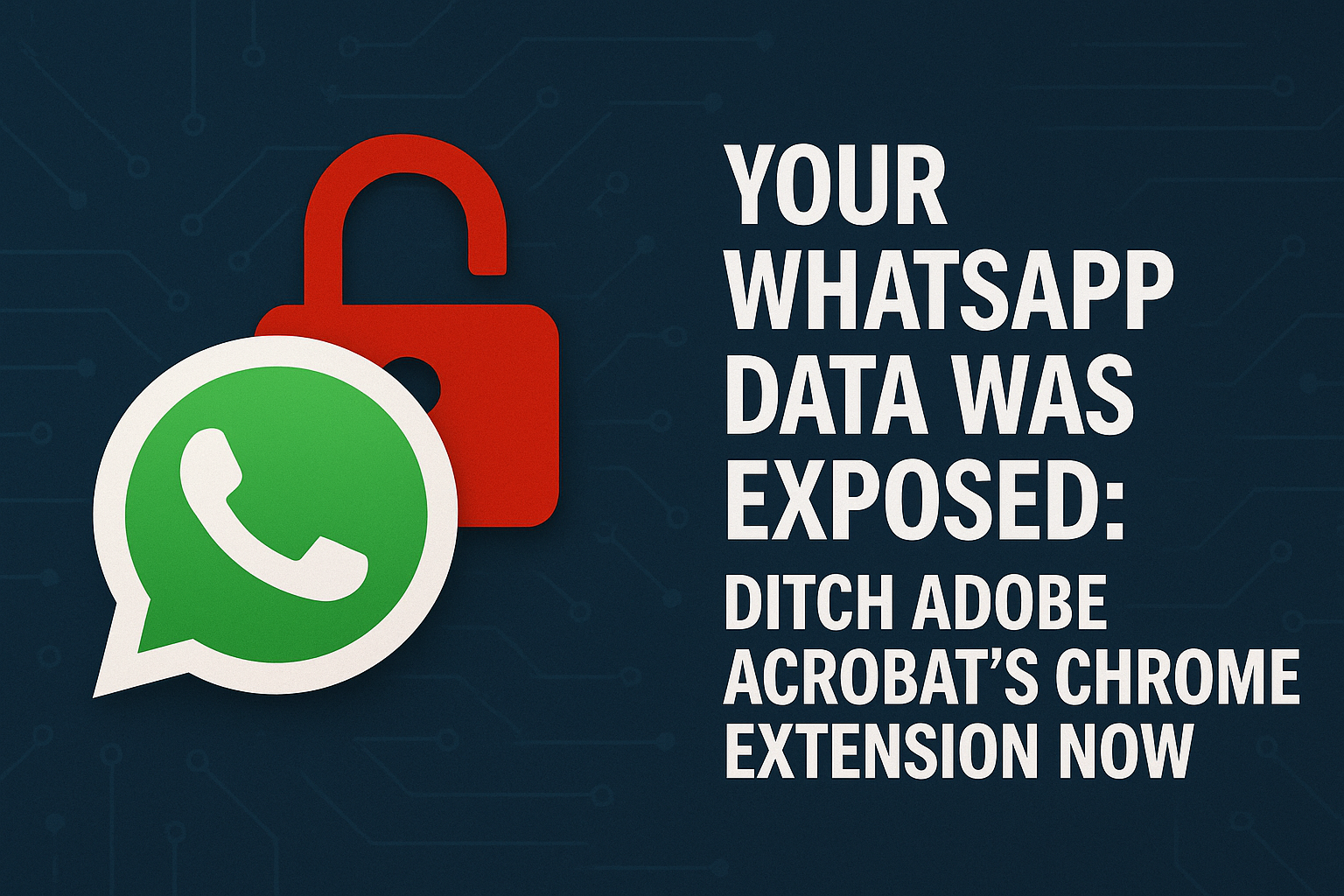

When you’re browsing the web, you probably assume the tools you use, especially from big names like Adobe, are keeping you safe. But what if one of those widely trusted tools, installed on hundreds of millions of browsers, silently opened a backdoor to your most private conversations? That’s exactly what happened with the Adobe Acrobat Chrome extension, and it’s a wake-up call for anyone who values their digital privacy. A recently discovered critical vulnerability allowed malicious websites to snag sensitive WhatsApp Web data – we’re talking private chats, contact lists, the whole nine yards – simply by coaxing a user to visit a compromised site. This wasn’t some niche attack; it put roughly 300 million installations at risk. Even though Adobe has reportedly patched the flaw, the incident highlights a critical truth: relying solely on popular extensions, even from reputable companies, can be a gamble. It’s time to explore the best alternatives to Adobe Acrobat Chrome extension for security, giving you peace of mind.
The sheer scale of this vulnerability is staggering. Imagine the potential for identity theft, blackmail, or targeted phishing campaigns fueled by exfiltrated WhatsApp data. It’s a stark reminder that browser extensions, while incredibly convenient, can also be significant security liabilities. The widespread deployment of the Adobe extension created an enormous attack surface, turning a simple PDF viewer into a potential data siphon. While Adobe patched the issue in June and urged users to update to version 26.5.2.2 or later, or manually force an update if auto-updates are disabled, the damage could have been done for many. This incident underscores the importance of scrutinizing every piece of software you install, especially those with deep browser integration. It’s not just about viewing PDFs anymore; it’s about safeguarding your entire digital footprint. Let’s look at how you can do better.
1. PDFgear: A Robust, Free Desktop Solution
While we’re primarily discussing Chrome extension alternatives, sometimes the most secure option is to step outside the browser entirely. PDFgear is a fantastic, completely free PDF editor that works as a standalone desktop application. This immediately mitigates many browser-based vulnerabilities, including cross-origin disclosure flaws like the one found in the Adobe Acrobat extension. By processing your documents offline, PDFgear keeps your sensitive information away from the unpredictable landscape of the internet, significantly reducing the attack surface. It’s a powerful tool that doesn’t compromise on features, offering everything from editing text and images to converting formats and managing pages. For more on this, see Trade-offs of safe browsing.
The beauty of PDFgear lies in its comprehensive functionality without a price tag. You can annotate, merge, split, compress, sign, and even OCR (Optical Character Recognition) documents with ease. For users who frequently handle sensitive PDFs, the decision to opt for an offline tool like PDFgear is a no-brainer for enhanced security. It removes the risk of a browser extension, no matter how well-intentioned, becoming an inadvertent conduit for data theft. If you’re serious about document security and want a full-featured solution without a subscription, PDFgear should be high on your list.
2. Smallpdf: Feature-Rich Online and Offline Ecosystem
Smallpdf offers a versatile suite of PDF tools, available both as a web application and a dedicated desktop app, along with a Chrome extension. While we’re cautious about extensions, Smallpdf’s approach to security is generally robust. Their online tools are encrypted, and they emphasize data privacy. For those who need the convenience of a browser extension, Smallpdf’s version allows for quick edits and conversions directly from your browser, but it’s crucial to understand the inherent risks. However, where Smallpdf truly shines as an alternative is its comprehensive ecosystem, allowing you to choose the level of integration that suits your security comfort.
The platform boasts over 20 PDF tools, including conversion, compression, merging, splitting, editing, and signing. What makes it a strong contender for the best alternatives to Adobe Acrobat Chrome extension for security is the flexibility it offers. You can use their web-based tools for less sensitive documents, or download their desktop application for full offline control over your more confidential files. This hybrid approach gives users the power to decide how and where their data is processed, a vital consideration in the wake of incidents like the Adobe extension flaw. Their commitment to GDPR compliance and regular security audits also adds a layer of trust.
3. Xodo PDF Reader & Editor: Cloud-Integrated, Security-Minded
Xodo is another excellent alternative, providing a robust PDF experience across various platforms, including a Chrome extension. What sets Xodo apart is its strong integration with cloud storage services like Google Drive, Dropbox, and OneDrive, allowing for seamless workflow while maintaining a focus on security. When you use Xodo, your documents are handled with encryption both in transit and at rest within these cloud services, assuming you’re using secure cloud providers. This means your files aren’t just floating around unprotected when you’re editing them online. (See: Cybersecurity and digital privacy resources.)
The Xodo Chrome extension offers solid functionality, including annotation, highlighting, and form filling, making it a powerful tool for quick browser-based PDF interactions. However, for maximum security, leveraging its cloud integration allows you to store and access documents securely within your preferred cloud environment, rather than relying solely on local browser storage that could be vulnerable. Xodo’s commitment to regular updates and a dedicated security team also contributes to its reliability as one of the best alternatives to Adobe Acrobat Chrome extension for security, especially for users who need cloud-centric workflows.
4. DocFly: Browser-Based with Encryption Focus
DocFly is a web-based PDF editor that emphasizes security and privacy, making it a strong contender for users seeking browser-based solutions without the risks associated with certain extensions. While it doesn’t offer a traditional Chrome extension in the same vein as Adobe or Smallpdf, its entirely web-based nature means you access it directly through your browser, effectively replacing the need for a potentially vulnerable extension. DocFly uses 256-bit SSL encryption to secure all data transmitted to and from their servers, a standard level of protection for online transactions and data transfers.
Beyond encryption, DocFly also has a policy of automatically deleting uploaded files from their servers after a short period (typically 24 hours), which is a significant privacy feature. This minimizes the risk of your sensitive documents lingering on third-party servers longer than necessary. For those who prefer a purely online solution for occasional PDF tasks, DocFly offers a secure environment for editing, converting, merging, and signing documents, making it a viable and security-conscious alternative to the Adobe Acrobat Chrome extension for security, particularly for users wary of installing browser add-ons.
5. Foxit PDF Editor: Professional Grade, Robust Security Features
Foxit has long been a major player in the PDF software market, known for its robust features and enterprise-level solutions. While it offers a comprehensive desktop suite, Foxit also provides a highly capable Chrome extension that serves as a direct and more secure alternative to Adobe Acrobat’s offering. Foxit’s commitment to security is evident in its regular updates, vulnerability patching, and adherence to industry security standards. Their products are designed with data integrity and privacy in mind, a crucial factor when dealing with documents.
The Foxit PDF Editor Chrome extension allows users to view, print, annotate, and fill out PDF forms directly within the browser, mirroring much of the functionality of the Adobe extension but with a generally stronger security posture. For businesses and individual users who require a feature-rich, reliable, and secure browser-based PDF solution, Foxit is an excellent choice. Its professional-grade capabilities mean you don’t sacrifice functionality for security, making it one of the best alternatives to Adobe Acrobat Chrome extension for security, especially for those who need advanced PDF tools within their workflow.
6. Sejda PDF Desktop: Privacy-Focused Offline Processing
Similar to PDFgear, Sejda offers a desktop application that allows for offline processing of your PDF documents, which inherently provides a higher level of security than browser-based tools. While Sejda also has a popular web interface, the desktop version is where its privacy-first approach truly shines. When you process files using the desktop application, your documents never leave your computer, eliminating any risk of data interception or server-side vulnerabilities.
Sejda’s desktop software is incredibly versatile, offering tools for merging, splitting, compressing, editing text and images, converting, and signing PDFs. For users who frequently handle highly sensitive information, the peace of mind that comes from knowing your documents are processed entirely offline is invaluable. This makes Sejda PDF Desktop an outstanding choice for those prioritizing maximum privacy and security, positioning it as a top alternative to the Adobe Acrobat Chrome extension for security, especially if you’re looking to minimize your browser’s attack surface.
7. Kami: Collaborative and Secure for Education and Business
Kami is a popular PDF and document annotation tool, particularly prevalent in educational settings, but also highly useful for businesses. It offers a Chrome extension that integrates seamlessly with Google Drive, Classroom, and Canvas. What makes Kami a strong alternative from a security perspective is its focus on controlled collaboration and user authentication. It leverages the security infrastructure of Google Workspace, meaning your documents are protected by Google’s robust encryption and access controls when stored in Drive. (See: Recent news on WhatsApp data security.)
Kami’s extension allows for extensive annotation, drawing, text editing, and even audio/video comments directly on PDFs in your browser. While it operates in the cloud, its design prioritizes secure sharing and access management, ensuring only authorized users can view or modify documents. For environments where collaboration is key but security cannot be compromised, Kami offers a well-balanced solution, making it one of the best alternatives to Adobe Acrobat Chrome extension for security, particularly for those embedded in the Google ecosystem. Related reading: Browser security insights.
8. LibreOffice Draw: Open-Source and Offline Powerhouse
For those who champion open-source software and prefer an entirely offline solution, LibreOffice Draw is an excellent, free alternative. As part of the LibreOffice suite, Draw is primarily a vector graphics editor, but it’s incredibly capable of opening, editing, and creating PDFs. Since it’s a desktop application, your documents never touch the internet unless you explicitly choose to upload or share them, providing an unparalleled level of security against browser-based exploits.
The learning curve for Draw might be slightly steeper than a dedicated PDF editor, but its power and flexibility are immense. You can manipulate text, images, and objects within PDFs, convert other document types to PDF, and export your work with precision. For users who are deeply concerned about proprietary software vulnerabilities and want full control over their document processing environment, LibreOffice Draw stands out as a highly secure and cost-effective alternative to the Adobe Acrobat Chrome extension for security, offering a robust, offline, open-source solution.
9. PDF Expert by Readdle: Premium iOS/macOS Experience (with Web Access)
While PDF Expert is primarily known as a premium PDF editor for iOS and macOS, Readdle, its developer, also offers web-based tools and services that can act as secure alternatives, especially for users within the Apple ecosystem. The desktop apps are renowned for their security features, including password protection and encryption for documents. For those who frequently switch between devices, PDF Expert’s cloud synchronization is robust and encrypted, ensuring your documents are safely accessible.
Though not a direct Chrome extension in the traditional sense, PDF Expert’s robust backend and web services allow for secure document handling that can replace many of the functions you’d perform with a browser extension. The emphasis on user privacy and data security by Readdle means that even when interacting with their web services, you’re leveraging a company with a strong track record in data protection. For Apple users looking for a secure, feature-rich PDF experience that extends across their devices, PDF Expert offers a premium and reliable path away from potentially vulnerable browser extensions, making it a strong contender among the best alternatives to Adobe Acrobat Chrome extension for security.
10. Your Browser’s Built-in PDF Viewer: Simple and Secure Default
Sometimes, the simplest solution is the best. Modern web browsers like Chrome, Firefox, Edge, and Safari all come with excellent built-in PDF viewers. These viewers are deeply integrated into the browser’s security model, meaning they benefit from the same robust sandboxing and security updates that protect the rest of your browsing experience. For basic viewing, printing, and sometimes even simple form filling, the native browser viewer is incredibly secure because it doesn’t add any third-party code that could introduce new vulnerabilities.
While these built-in viewers lack advanced editing features, they are perfect for simply opening and reading PDFs without any additional risk. If your primary use case for the Adobe Acrobat extension was just viewing PDFs, then disabling it and relying on your browser’s default functionality is arguably the most secure choice you can make. It removes an entire layer of potential vulnerability, giving you peace of mind without needing to install any extra software. It’s a fundamental, yet often overlooked, alternative to the Adobe Acrobat Chrome extension for security. (See: Research on browser extension vulnerabilities.)
Understanding Browser Extension Risks
The Adobe Acrobat vulnerability serves as a stark reminder of the inherent risks associated with browser extensions. These small pieces of software, while incredibly convenient, operate with significant privileges within your browser. They can often read and modify content on webpages you visit, access your browsing history, and sometimes even interact with your local files. This level of access, when combined with a flaw, creates a massive attack surface that malicious actors are eager to exploit.
The cross-origin disclosure flaw in the Adobe extension, for instance, allowed a malicious website to circumvent same-origin policy protections and exfiltrate data from other tabs, specifically WhatsApp Web. This wasn’t about the extension itself being inherently malicious, but about a coding error that created an unintended pathway for data theft. It highlights that even extensions from reputable companies can harbor critical flaws. Regularly reviewing your installed extensions, understanding their permissions, and opting for the fewest necessary is a critical security practice.
Prioritizing Your Digital Security
The incident with the Adobe Acrobat Chrome extension should be a catalyst for re-evaluating your digital security habits. In a world where your private conversations and data can be stolen with surprising ease, being proactive is no longer optional. While Adobe has patched the vulnerability, the sheer volume of affected users – 300 million installations – means this issue had a truly massive impact. It’s not enough to simply hope that developers catch every bug; you need to build a resilient security strategy. There’s a fuller look at Privacy tips for educators.
This means not only updating your extensions promptly but also questioning whether you truly need every extension you install. For PDF handling, as we’ve explored, there are numerous excellent alternatives that offer superior security postures, whether through offline processing, strong encryption, or a more focused approach to browser integration. By choosing wisely, you can significantly reduce your exposure to such vulnerabilities and protect your most sensitive information from falling into the wrong hands.
Ultimately, your digital security is a shared responsibility. While software developers must strive for secure code, users must also be vigilant and informed. Taking the time to explore and adopt the best alternatives to Adobe Acrobat Chrome extension for security isn’t just about finding a new PDF tool; it’s about making an informed decision to safeguard your privacy in an increasingly complex digital landscape.
Trending Now
Frequently Asked Questions
What happened with the Adobe Acrobat Chrome extension?
The Adobe Acrobat Chrome extension was found to have a critical vulnerability that allowed malicious websites to access sensitive WhatsApp Web data, including private chats and contact lists. This issue affected around 300 million installations and highlighted the risks associated with relying on popular browser extensions for digital privacy.
How can I protect my WhatsApp data from browser vulnerabilities?
To protect your WhatsApp data, consider uninstalling potentially vulnerable browser extensions like Adobe Acrobat. Regularly update your software, use privacy-focused alternatives, and be cautious about the websites you visit to avoid falling victim to such vulnerabilities.
What alternatives are there to the Adobe Acrobat Chrome extension?
Alternatives to the Adobe Acrobat Chrome extension include PDFgear, which offers robust desktop solutions for PDF viewing and editing without the security risks associated with browser extensions. Other options include small PDF and Foxit Reader, which prioritize user privacy.
Why should I be concerned about browser extensions?
Browser extensions can pose significant security risks, as they can create vulnerabilities that allow unauthorized access to your data. The recent Adobe Acrobat incident serves as a reminder that even trusted extensions can be exploited, making it essential to scrutinize what you install.
How do I know if my Adobe Acrobat extension is updated?
To check if your Adobe Acrobat Chrome extension is updated, go to the Chrome extensions page, find Adobe Acrobat, and ensure it is updated to version 26.5.2.2 or later. If auto-updates are disabled, you may need to manually force an update.
What did we miss? Let us know in the comments and join the conversation.