Tech Advice

How to Fix Roku Error Code 003: A Comprehensive Guide

Introduction

Roku streaming devices have taken the entertainment world by storm, offering users access to countless shows, movies, and apps. However, like any technology, errors can occasionally occur. One common issue that some Roku users face is the notorious Error Code 003. In this article, we will walk you through a comprehensive guide on how to fix this frustrating problem.

What is Roku Error Code 003?

Roku Error Code 003 is also known as the “Software Update Failed” error. It often occurs during system updates and can be due to several factors such as poor internet connection or server issues. When this error happens, users are unable to update their devices and access the newest features or fixes.

Steps to Fix Roku Error Code 003

1. Check Your Internet Connection:

Before trying any complex solutions, make sure your internet connection is strong and stable. Test the connection by playing a video on a different device connected to the same network. If the problem persists, consider resetting your router or contacting your Internet Service Provider (ISP) for help.

2. Restart Your Roku Device:

To give your device a fresh start, unplug it from the power source for at least 20 seconds before plugging it back in. This simple reset may resolve temporary issues causing the error.

3. Verify your DNS Settings:

Sometimes, incorrect DNS settings can cause Error Code 003. To check them:

a. Go to “Settings” on your Roku device

b. Select “Network,” then “Network Connection”

c. Choose “Wired (Ethernet)” or “Wireless,” depending on your connection type

d. Review the IP Address, Subnet Mask, Gateway, and DNS settings to ensure they’re correct

If you don’t know how these settings should look like or suspect they might be incorrect, consult with your ISP.

4. Update your Roku Device Manually:

If the automatic update isn’t working, try updating your device manually. To do this:

a. Go to the “Settings” menu on your Roku

b. Select “System,” then “System Update”

c. Press “Check Now” to initiate the manual update process

5. Disable VPN or Proxy:

Using a VPN or proxy service can interfere with Roku’s update process, triggering Error Code 003. Disable these services temporarily and try updating again.

6. Factory Reset Your Roku Device:

As a last resort, you may need to perform a factory reset which will erase all settings and data on the device. Before doing so, ensure that you have your account login information handy since you will need to re-enter it after the reset.
To factory reset your Roku device:

a. Go to “Settings,” then “System”

b. Select “Advanced System Settings”

c. Choose “Factory Reset” and follow the onscreen instructions

Conclusion

We hope this comprehensive guide assists you in resolving Roku Error Code 003, allowing you to enjoy your favorite streaming content once again. By following these steps in order, most users should be able to overcome this irritating issue and continue enjoying their Roku devices with minimal disruption.

Best Cable Internet Providers of 2023: Comparing the Top ISPs

Introduction:

As technology continues to progress, the need for reliable and high-speed internet is one of the most important factors for many households and businesses. With a variety of internet service providers (ISPs) available in the market, choosing the right one can be a daunting task. In this article, we have compared the top cable internet providers of 2023 to help you make an informed decision for your connectivity needs.

Top Cable Internet Providers of 2023:

1. Comcast Xfinity:

Comcast Xfinity has consistently been at the top of the list for providing high-speed cable internet services. With its wide coverage and competitive pricing, it caters to both residential and commercial customers. Offering speeds up to 3 Gbps in select areas, Xfinity ensures its users enjoy seamless connectivity for streaming, gaming, and other online activities.

2. Spectrum:

Spectrum offers a range of high-speed cable internet plans with no data cap restrictions. With its broad availability across the United States, Spectrum is increasingly becoming a popular choice for internet users in various regions. Its speeds range from 100 Mbps to 1 Gbps, making it suitable for diverse needs.

3. Cox Communications:

Cox Communications has been in the ISP business for decades and remains a prominent choice among customers seeking reliable cable internet services. They provide speeds up to 1 Gbps and offer various tiers to suit individual requirements. Cox Communications also boasts a comprehensive customer support system to address any issues promptly.

4. Suddenlink:

Suddenlink’s rapidly expanding network has made it a contender among top cable internet providers. It offers high-speed internet access with plans starting at 100 Mbps and going up to 1 Gbps in select regions. Additionally, Suddenlink’s affordable pricing makes it an attractive option for many households looking for budget-friendly options.

5. Mediacom:

Mediacom brings high-speed internet services to rural and suburban areas with its extensive coverage. Its internet speeds range from 60 Mbps to 1 Gbps, depending on the plan chosen. Mediacom’s varied plan options make it suitable for different needs, and its higher-tier plans boast competitive pricing.

Conclusion:

Selecting the best cable internet provider from this list is dependent on individual requirements, budgets, and geographical location. Take into account the average speed provided in your area, additional services like streaming or security features, and customer reviews before making a final decision.

Apple Watch Series 9 Rumors: Will it get a Blood Glucose Monitor?

As technology evolves, wearables such as the Apple Watch continue to push the boundaries of what these devices can do. One of the most anticipated features for the upcoming Apple Watch Series 9 is a blood glucose monitor. With more people looking to manage their health effectively, a blood glucose monitoring feature could be a game-changer in how individuals manage diabetes and other blood sugar-related conditions.

Rumors have been swirling about whether the new Apple Watch Series 9 will include this groundbreaking feature. Although no official announcement has been made, insiders suggest that there is a strong possibility that this function will appear in the upcoming device. Let’s dive into these rumors and what we know so far.

Firstly, it’s crucial to understand why the potential inclusion of a blood glucose monitor would be so essential. Currently, individuals who need to regularly monitor their blood sugar levels have to rely on separate devices like glucometers and continuous glucose monitors (CGMs). Incorporating this functionality into a device like the Apple Watch, which many people already use daily, would streamline the process and make glucose monitoring more accessible than ever before.

Moreover, seamless integration of this feature into an Apple Watch would provide real-time data insights and alerts for users, leading to better blood sugar management and preventive decision-making. With quick access to essential information, individuals with diabetes or related conditions would have even greater control over their health.

Now let’s move on to the basis of these rumors. In recent months, some patent filings by Apple have hinted at their interest in developing a smartwatch with non-invasive blood glucose monitoring capabilities. Additionally, reputable tech insiders like Mark Gurman have also suggested that Apple may be planning to bring this feature onboard in future iterations of the device.

However, it’s worth noting that implementing an accurate and reliable non-invasive blood glucose monitor is a colossal challenge. Many companies have attempted to create such devices in the past, but often faced criticisms due to inaccuracies in the technology. Therefore, while Apple might aspire to feature the blood glucose monitor in the next iteration of the Apple Watch, it could end up being delayed until they perfect the technology.

In conclusion, it remains uncertain whether the Apple Watch Series 9 will debut with a blood glucose monitor in tow. The rumors and patent filings indicate that Apple is keen on implementing this feature to make their smartwatch even more multifaceted when it comes to health management. However, as technology continues to advance, it’s only a matter of time before we see this groundbreaking feature becoming a reality on wearables like the Apple Watch. Until an official announcement is made, people looking forward to this feature will have to wait and see if Series 9 fulfills their expectations.

How to Fix It When the Apple Podcasts App Won’t Play a Podcast

Is your Apple Podcasts app not playing your favorite podcast? It can be frustrating when you’re eager to listen to the latest episode but encounter playback issues. Don’t worry – here are some tried-and-true solutions to get your podcasts playing again in no time.

1. Check Your Internet Connection

A stable internet connection is essential for streaming podcasts. Make sure you’re connected to Wi-Fi or cellular data and that your device has a strong signal. If necessary, turn off Airplane Mode and enable Wi-Fi or cellular data in the Settings app.

2. Ensure Podcast Availability

Verify that the podcast episode you’re trying to play is still available. Sometimes, episodes are taken down or removed from the platform by the content creator. In such cases, you won’t be able to play them on any device.

3. Update the Apple Podcasts App

Outdated apps may cause glitches and performance issues. Visit the App Store and update your Apple Podcasts app if an update is available.

4. Restart Your Device

Restarting your device can help resolve minor software hiccups and improve app functionality. Power off your iPhone or iPad, wait a few seconds, then power it on again, and try playing the podcast.

5. Force Close the Apple Podcasts App

If the issue persists, try force closing the app and reopening it: Double press the Home button (or swipe up halfway on devices without a Home button) to access the app switcher, swipe left or right until you find the Apple Podcasts app, then swipe it off the screen.

6. Delete and Reinstall The App

If all else fails, deleting and reinstalling the Apple Podcasts app could resolve underlying issues that aren’t fixed by previous methods. Tap and hold on the app icon until a menu appears, select ‘Delete App,’ then confirm the action. Afterwards, reinstall it from the App Store.

7. Check for iOS Updates

In some cases, iOS updates may resolve app-related bugs. Visit your device’s Settings > General > Software Update to check for and install any available updates.

8. Reset Network Settings

If streaming issues persist, try resetting your network settings: Go to Settings > General > Reset then select ‘Reset Network Settings.’ Note that this process will erase your saved Wi-Fi passwords and require you to re-enter them after the reset.
By following these troubleshooting steps, you should be able to resolve most playback issues with the Apple Podcasts app and enjoy listening to your favorite podcasts again.

HP Envy x360 13 – A Midrange 2-in-1 That Falls Short on Battery Life

The HP Envy x360 13 is a midrange 2-in-1 laptop that delivers in many aspects, but unfortunately falls short when it comes to battery life. Designed for users who need a versatile and responsive device for multitasking, the Envy x360 13 offers a sleek and compact design coupled with smooth performance.

Constructed from high-quality aluminum, the Envy x360 13 boasts a premium feel. The device is light and slim, making it comfortable to use in both laptop and tablet mode. The 360-degree hinge allows users to effortlessly switch between modes, catering to their needs in various work settings.

One of the standout features of this laptop is its responsive touchscreen, offering remarkable precision and accuracy. The Full HD IPS display delivers crisp visuals with vibrant colors, making images and videos pop on screen. Additionally, the narrow bezels ensure that you get the maximum screen real estate possible.

Under the hood, the Envy x360 13 comes equipped with an AMD Ryzen processor – providing ample processing power for multitasking and running demanding applications. Paired with a solid-state drive (SSD) for storage, file transfers are swift while reducing overall system noise and power consumption.

Despite boasting powerful hardware, the laptop suffers from inadequate battery life. Many users noticed that it does not last for an entire workday without needing a recharge. This can be a significant issue for professionals and students who require extended hours of use on the go.

On a more positive note, the device’s audio quality is impressive due to its partnership with Bang & Olufsen. The dual speakers produce clear and immersive sound for music, movies or video calls – enhancing the overall user experience.

In summary, despite its shortcomings in battery life, the HP Envy x360 13 is a well-rounded 2-in-1 laptop that caters to consumers who prioritize versatility, performance, and design. Nevertheless, those who require all-day battery life in their device may need to look elsewhere for a more suitable option.

How to Sharpen Kitchen Knives: A Comprehensive Guide

Introduction:

A dull kitchen knife is not only ineffective but also dangerous. Sharpening your knives is an essential skill for anyone who enjoys cooking. In this comprehensive guide, we will explore various techniques and tools for sharpening kitchen knives and enabling you to make precise cuts with ease.

1. Understand Your Blade:

Before you begin, it is crucial to understand the type of blade you are working with. Different blade materials, such as stainless steel or carbon steel, and blade styles, like serrated or straight-edged, require distinct sharpening techniques. Knowing your knife’s characteristics will help you use the appropriate method for optimal results.

2. Choose a Sharpening Method:

There are several methods for sharpening kitchen knives, including:

a) Whetstone: This traditional method involves using a stone with a coarse and a fine grit side. Soak the stone in water before use and glide your blade across the surface at a 20-degree angle.

b) Honing Rod: A honing rod helps maintain the sharpness of a knife in between full-scale sharpening sessions. Hold the rod vertically and swipe the blade against it at a 20-degree angle on each side.

c) Electric Knife Sharpener: Simply pass the knife through the device following the manufacturer’s instructions.

d) Manual Knife Sharpener: This option includes pre-set slots with different coarseness levels. Insert the blade into each slot and pull it through multiple times.

3. Assess Your Knife’s Sharpness:

A properly sharpened knife should effortlessly slice through paper or produce clean cuts on a tomato with minimal pressure. Test your knife after sharpening to ensure success.

4. Storing Your Knives Correctly:

Proper storage maintains the sharpness of your blades over time. Options include a magnetic strip, wooden block, or protective sheaths.

5. Essential Knife Maintenance:

Clean your knives thoroughly after each use, avoiding the dishwasher to prevent damage. Dry them immediately after washing to protect blade quality and reduce rusting potential.

Conclusion:

Sharpening your kitchen knives is a valuable skill that not only adds ease to your cooking experience but also ensures safety in the kitchen. By choosing the suitable sharpening method, regularly honing your knife, appropriately storing and maintaining it, you can prolong its longevity and elevate your culinary endeavors. Happy cooking!

Nintendo Switch Lite Review: A Great Handheld Without the Switch Part

The gaming world has seen a plethora of handheld gaming devices, but few have managed to make as much of an impact as the Nintendo Switch Lite. This sleek, compact device has quickly become a favorite among gamers thanks to its portability, impressive game library, and great performance. In this article, we will provide an in-depth review of the Nintendo Switch Lite and explore what makes it such a fantastic handheld console.

Design and Build

The Nintendo Switch Lite embraces simplicity in its design, boasting a streamlined and compact form factor that easily fits in your hands. It measures 3.6 x 8.2 inches and weighs approximately .61 pounds. Unlike the standard Nintendo Switch model, the Lite version features integrated controls instead of detachable Joy-Cons which lend to its unibody design. The body is made from plastic, yet it feels durable and well-built.

Performance

Despite being marketed as a less expensive alternative to the traditional Nintendo Switch, the Switch Lite packs impressive performance capabilities. Sporting a custom NVIDIA Tegra processor, this little powerhouse runs many modern games smoothly – even in demanding titles such as The Legend of Zelda: Breath of the Wild or Super Smash Bros. Ultimate.

Display

The display on the Nintendo Switch Lite is slightly smaller than that of its big brother – a 5.5-inch LCD touchscreen with a resolution of 1280×720 pixels. Although it’s smaller in size, it boasts bright colors and crisp visuals that make games come to life in your hands.

Battery Life

A significant concern for many gamers is battery life when using a handheld system. Thankfully, the Nintendo Switch Lite has you covered with an estimated battery life of about 3-7 hours depending on gameplay intensity and hardware usage. This allows gamers to enjoy their favorite titles for extended periods without constantly worrying about recharging.

Game Library

What sets Nintendo consoles apart from competitors is their extensive game library. The Switch Lite has access to an impressive range of games, including popular titles such as Animal Crossing: New Horizons, Mario Kart 8 Deluxe, and The Legend of Zelda: Link’s Awakening. Additionally, the ever-growing selection of indie and third-party games available on the eShop ensures there’s always something new to play.

Downsides

While the Nintendo Switch Lite is undeniably a great handheld device, it lacks some features found in the original Switch model. Most notably, it does not support TV dock mode, meaning you cannot connect it to a television to enjoy games on a larger screen.

Furthermore, since the controls are integrated into the device itself, there is no option for detachable Joy-Cons or multiplayer functionality out of the box – you’ll need to purchase additional controllers separately.

Conclusion

Overall, the Nintendo Switch Lite is a fantastic handheld gaming console. Its compact design, impressive performance, and extensive game library make it an excellent choice for gamers on-the-go. While some features from the original Switch model aren’t present in this version, it still stands as a solid option for those primarily focused on handheld gaming. If you’re in the market for a portable gaming device with a diverse game library and great performance capabilities, look no further than the Nintendo Switch Lite.

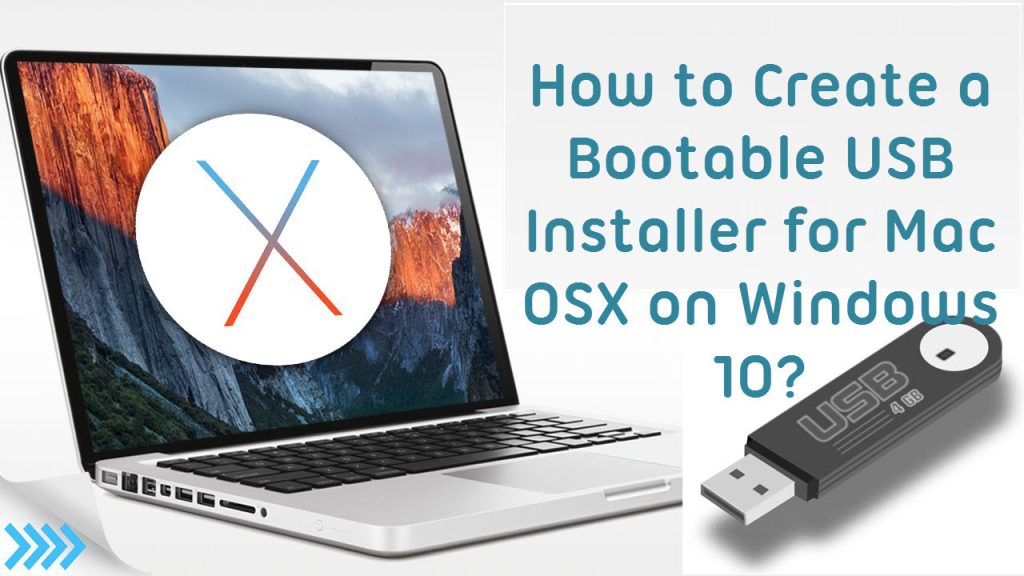
Creating a Bootable USB Installer for OS X El Capitan

Introduction:

OS X El Capitan is an important operating system for many Macintosh users. In order to create a bootable USB installer for OS X El Capitan, you need the right tools and procedures. In this article, we will guide you through the steps of creating a bootable USB installer for your Mac.

What You’ll Need:

1. A 16GB USB Flash Drive

2. Access to the Install OS X El Capitan Application downloaded from Apple

3. A computer running macOS or OS X with administrative privileges

Step 1: Downloading the Install OS X El Capitan Application

Before getting started, make sure to download the Install OS X El Capitan application from the App Store on your Mac. If it’s not available in your purchased section, consider asking a friend or finding another legitimate source where you can access it.

Step 2: Prepare the USB Flash Drive

Begin by inserting the USB flash drive into your Mac. Next, open Disk Utility by searching for it in Spotlight (CMD+Space) or locating it in /Applications/Utilities/. Select the inserted flash drive, then click on “Erase” (ensure you have backed up any essential data on the flash drive). Choose “OS X Extended (Journaled)” from the Format options and name it ‘Untitled.’ Click “Erase” and wait until the process is complete.

Step 3: Create a Bootable USB Installer

Now that your flash drive is prepared, open Terminal by searching for it in Spotlight (CMD+Space) or locating it in /Applications/Utilities/. Type or copy-paste the following command:

“`

sudo /Applications/Install\ OS\ X\ El\ Capitan.app/Contents/Resources/createinstallmedia –volume /Volumes/Untitled –applicationpath /Applications/Install\ OS\ X\ El\ Capitan.app –nointeraction

“`
Press Enter, and you will be prompted for your administrator password. Type your password (it won’t be displayed on the screen) and press Enter again.

The process of creating a bootable USB installer will begin. You’ll see messages indicating that the flash drive is being erased and indicating its progress, such as “Copying installer files to disk…” and “Making disk bootable…”. Please wait for the process to finish as it can take some time. Once done, Terminal will display “Copy complete” and “Done.”

Step 4: Using the Bootable USB Installer

With your new OS X El Capitan bootable USB installer ready, restart your Mac while holding down the Option key. When the Startup Manager appears, select the USB drive (named ‘Install OS X El Capitan’) and press Enter. Follow the on-screen instructions to perform an upgrade or clean install of OS X El Capitan.

Conclusion:

Creating a bootable USB installer for OS X El Capitan can be a useful process if you need to perform a clean installation of macOS on your Mac or help out friends in need. By following this tutorial, you are now equipped with the knowledge to create a bootable USB installer and upgrade or install OS X El Capitan.

Ways to Fix Grammarly Extension Not Working on Chrome

Introduction:

Grammarly is a highly popular extension for Google Chrome that assists users in creating grammar and spelling error-free content. However, sometimes you might experience issues with the Grammarly extension not working properly on Chrome. This article aims to provide helpful solutions to fix the problem.

1. Update Google Chrome:

First and foremost, ensure that your Google Chrome browser is updated to the latest version, as outdated versions may cause compatibility issues with the Grammarly extension.

2. Clear Browser Cache and Cookies:

Overloaded browser cache and cookies may lead to the Grammarly extension not working properly. Clear these by navigating to Chrome settings > Privacy and security settings > Clear browsing data.

3. Disable Other Extensions:

There might be other extensions interfering with Grammarly’s functionality. To check if this is the case, disable all other extensions and see if Grammarly starts working again.

4. Reinstall Grammarly Extension:

If the above solutions didn’t help, try uninstalling the Grammarly extension and then reinstalling it from the Chrome Web Store.

5. Check Installed Applications or Antivirus Settings:

In some cases, installed applications (such as VPNs) or antivirus software settings may block or interfere with extensions like Grammarly. Make sure to add an exception for Grammarly or disable any conflicting applications temporarily to see if it resolves the issue.

6. Change Browser Hardware Acceleration Settings:

Enabling hardware acceleration in your browser settings can sometimes cause issues with certain extensions. Try disabling hardware acceleration and relaunching Chrome to see if that resolves the problem.

7. Reach Out to Grammarly Support:

If all else fails, contacting the Grammarly support team can provide further assistance in resolving your issue. They are available via email or live chat on their website and can guide you on potential solutions tailored specifically for your situation.

Conclusion:

Dealing with a malfunctioning Grammarly extension can be frustrating, but by attempting the above-mentioned solutions, you stand a good chance of restoring its functionality. Remember that you can always contact Grammarly support if you are unable to resolve the issue on your own.

Will Coinbase Refund Your Crypto If You’re Scammed?

The world of cryptocurrency has opened up a myriad of investment opportunities for enthusiasts. Coinbase, a popular and secure platform, is used by millions to buy, sell, store, and trade digital currencies. As with any financial endeavor, the risks of scams and security breaches are ever-present. A burning question for many who venture into the cryptocurrency market is this: Will Coinbase refund your crypto if you’re scammed?

Establishing Liability

The first thing to understand when answering this question is Coinbase’s specific role in holding your crypto assets. When using their services to buy or sell cryptocurrencies such as Bitcoin or Ethereum, you trust them with custodianship of these digital assets. However, Coinbase is not responsible for transactions that occur as a result of scamming or hacking outside of their platform. In other words, it’s crucial to emphasize that users are responsible for maintaining the security of their personal accounts and trading activities.

Coinbase’s Security Measures

Coinbase prioritizes the safety and security of its users and their digital assets with a wide array of protective measures:

1. Two-Factor Authentication (2FA) – 2FA requires users to verify their identity through a secondary code sent via SMS or an authenticator app.

2. Secure Cold Storage – 98% of customer funds are stored offline in hardware wallets and geographically diverse locations.

3. FDIC Insurance – USD balances on Coinbase are insured by the Federal Deposit Insurance Corporation (FDIC), safeguarding funds up to $250,000 per individual.

4. Encryption – All sensitive data, including your login information and personal details, is encrypted using military-grade AES-256 encryption.

5. Biometric Authentication – Users can enable biometric authentication for mobile app access using fingerprint scanning technology.

Scenarios Where Coinbase Offers Support

While Coinbase may not reimburse users who lose funds due to scams or hacks outside their platform, they do provide support for specific situations. In the case of an unauthorized transaction that occurs due to a security breach on their end, Coinbase investigates the matter and may refund lost funds. However, this is only guaranteed if users follow the required security measures and promptly report any suspicious or unauthorized activity.

Best Practices for Avoiding Scams

With their robust security measures, Coinbase minimizes risks for its users. However, here are some tips to further protect yourself from scams:

1. Always have a strong, unique password for your Coinbase account.

2. Regularly monitor your account for any suspicious activities.

3. Do not share personal account information with others.

4. Research legitimate sources before investing in a new cryptocurrency.

5. Be cautious when participating in Initial Coin Offerings (ICOs) and avoid schemes promising unrealistic returns.

In conclusion, while Coinbase may not refund your crypto in every situation, they strive to provide a secure environment for trading and storing digital assets. By following best practices and utilizing Coinbase’s security features, users can take essential steps toward protecting their investments and reducing the risk of falling victim to scams or hacks.