Tech Advice

How to Read Newspapers Online for Free

In today’s digital age, accessing the news and staying up-to-date on current events has become increasingly essential. While many newspapers have made the switch to online platforms, some require subscriptions to access their content. However, there are various ways to access these newspapers online for free. In this article, we will cover a few methods that provide unrestricted access to a wide range of news sources.

1. Library Resources:

Many libraries offer their members access to a diverse selection of newspapers online without charge. These institutions often have partnerships with newspaper publishers that allow library cardholders free access to the publications. To begin utilizing this resource, simply log in to your library’s website using your library card number and search for the desired newspaper.

2. Google News:

Google News is another great way to read newspapers online for free. By browsing through their extensive catalog of stories from numerous sources, readers can explore various perspectives on global and local news. Google News aggregates the most recent articles from around the world based on user interest and personalizes content recommendations.

3. Newspaper Websites with Limited Free Access:

Some well-known newspapers offer limited free access to their content, such as The New York Times, The Wall Street Journal, and The Washington Post. Although these sources may restrict how many articles you can read per month without a subscription, they still provide readers with valuable information during these limited access periods.

4. Aggregator Websites:

Websites like USNPL and AllYouCanRead act as aggregator platforms that compile links to numerous newspapers available online. Simply search for the desired location or type of news you are interested in reading, and the site will direct you to various sources offering unrestricted access.

5. Social Media:

Newspaper pages on social media platforms like Facebook or Twitter often share their latest articles or breaking news updates for free. Following or subscribing to your preferred newspaper’s social media account is an excellent way to stay informed without a paid subscription.

6. Mobile Apps:

Many newspapers offer mobile apps for their readers that grant access to the latest news for free. For example, apps such as SmartNews and News360 aggregate top stories from multiple sources and provide options to personalize one’s news feed according to personal interests.

These are just a few of the numerous methods available for accessing newspapers online for free. By utilizing these resources and exploring other alternatives, staying informed of current events can be both convenient and cost-effective.

Discovering Free Audiobooks on Spotify: Your Ultimate Guide

Introduction

Spotify, the popular music streaming platform, is known for its extensive library of songs, podcasts, and playlists. However, it’s much more than just a music player. In fact, Spotify is an excellent resource for discovering and listening to free audiobooks. This article will guide you through the process of finding and enjoying free audiobooks on Spotify.

1. Why Audiobooks on Spotify?

Spotify offers a vast collection of audiobooks, ranging from classics to modern bestsellers. This makes it easy to find something that piques your interest without breaking the bank. Plus, audiobooks are a fantastic way of absorbing literature at your convenience while you commute, exercise, or relax at home.

2. How to search for audiobooks on Spotify

Finding audiobooks on Spotify is simple. Just follow these quick steps:

a) Open the Spotify app on your device.

b) Navigate to the Search bar.

c) Type keywords such as “Audiobook,” “audiobook classics,” or various genera like “sci-fi,” “mystery” or specific book titles.

d) Browse through the results to find what suits your taste.

Another useful method is searching by author’s name (for example, “George Orwell”) and checking their Artist profile for any available audiobook recordings.

3. Dedicated playlists and profiles

There are several dedicated playlists and user profiles featuring curated collections of audiobooks across various genres and languages. Some popular profiles include Audiobooks on Spotify, HarperAudio_USA, Penguin Books UK among others. You can search for these profiles using the Search functionality or explore them under the ‘Audiobooks’ genre in Spotify’s Browse section.

4. Using third-party playlists and websites

Apart from built-in tools within Spotify, there are websites and forums that share lists of audiobook titles available on Spotify. Websites like thetechedvocate.org provide comprehensive guides and links to different audiobook playlists created by Spotify users.

5. Save and create your own audiobook playlists

Once you’ve found an audiobook you want to listen to, it’s best practice to save it to your library or create a custom playlist for it. This ensures easy access and offline listening. To save an audiobook on mobile devices, click on the ellipsis menu (three dots) next to the track and select ‘Save.’ You may also create new playlists for various genres, authors, or series.

Conclusion

Spotify is a treasure trove of free audiobooks waiting to be discovered. Finding them might require a bit of searching, but with dedicated playlists, author profiles, and third-party resources, tracking down your next favorite listen is just a few clicks away. Happy listening!

Transform Your Smartphone into a Barometer or Altimeter with Ease


Introduction:

Technology has revolutionized how we interact with our surroundings and accomplish various tasks. One such example is how smartphones can now function as barometers and altimeters, complementing their primary functions. The availability of these features on your phone allows for accurate weather predictions and measurements of altitude. In this article, we will explore how to turn your phone into a barometer or altimeter using specific apps and methods.

Turning Your Phone into a Barometer:

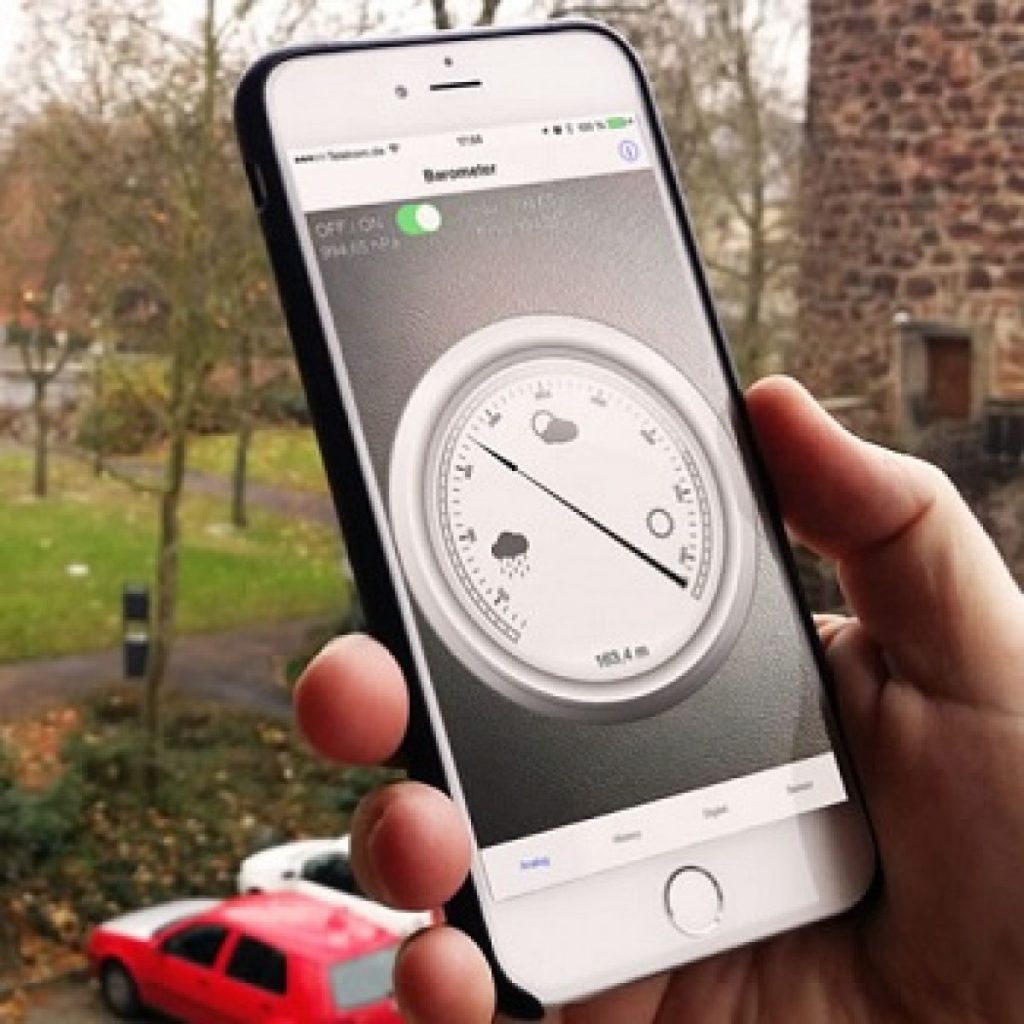
A barometer measures atmospheric pressure, which is valuable information for predicting weather changes. Most smartphones have pressure sensors built-in, enabling the use of barometric apps. Some popular barometer apps for Android and iPhone include Barometer & Altimeter Pro, Barometer Reborn, and Barometer Plus. Download the app that suits your needs, follow the on-screen instructions, and turn your smartphone into a useful tool for accurate weather forecasting.

Using Your Phone as an Altimeter:

An altimeter is an instrument designed to measure altitude or elevation. Turning your smartphone into an altimeter can be useful for monitoring your location during outdoor activities like hiking, cycling, or skiing. You can accomplish this by using specific apps that rely on GPS data, including My Altitude, Accurate Altimeter, and Altimeter GPS+. Once you’ve downloaded the desired app on your smartphone device, set it up based on the instructions provided within the app to measure elevation effectively.

Tips for Optimizing Performance:

To maximize the accuracy of both barometer and altimeter readings from your phone, take note of these tips:

1. Ensure your phone’s GPS settings are active and optimally calibrated.

2. Regularly calibrate the pressure sensor (barometer) by using a reference point with known altitude or pressure.

3. Keep your smartphone in a well-ventilated area to ensure accurate readings.

4. Close other apps that are running in the background, as they can interfere with accuracy or consume battery life.

5. Use a sturdy phone mount to facilitate hands-free usage during your outdoor activities.

Conclusion:

Smartphones have indeed come a long way in offering users a versatile range of functionalities. By transforming your device into a barometer or altimeter, you enhance its usefulness and encourage the adoption of various applications in everyday life. So, give those apps a try, and unleash the weather predicting and elevation measuring power of your smartphone today!

How to Remove Floating Home Button from iPhone and Android Screen

Introduction:

Smartphones have become an essential part of our lives, and with the constant updates and new features, we sometimes find ourselves overwhelmed by the never-ending options. One such setting is the floating home button – a feature that can be both useful and annoying for users. If you find yourself wanting to remove the floating home button from your iPhone or Android screen, this article is here to guide you through the process.

Removing Floating Home Button on iPhone:

Step 1: Access the Settings.

To begin, open the Settings app on your iPhone. This is where you can configure many aspects of your device.

Step 2: Enter Accessibility Settings.

Scroll down and tap on “Accessibility.” The Accessibility menu contains settings that can assist people with disabilities in using their devices more effectively.

Step 3: Navigate to Touch Settings.

From there, go to “Touch” settings, which allows you to control how your screen interacts with your touch input.

Step 4: Turn Off AssistiveTouch.

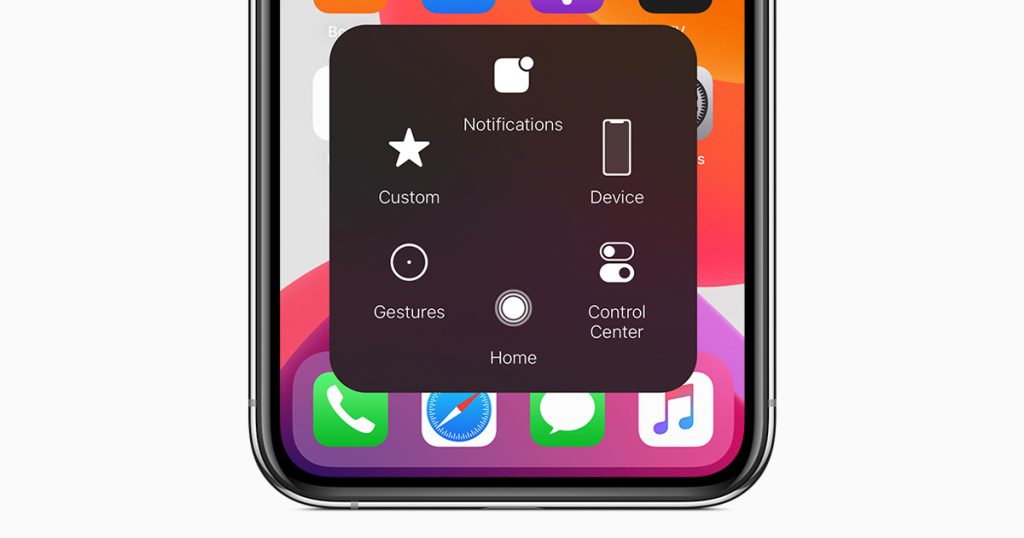
Finally, locate “AssistiveTouch” in the list of options and toggle it off. This will disable the floating home button feature on your iPhone.

Removing Floating Home Button on Android:

The process for removing the floating home button from an Android device may vary depending on the manufacturer and version of your device. However, here’s a general outline of what you can do:

Step 1: Open Settings App.

On your Android phone, access the Settings App by swiping down from the top of the screen and tapping on the gear icon or finding it within your app drawer.

Step 2: Find Accessibility Features.

Search for “Accessibility” within your settings menu. Similar to iPhone’s settings, these options will help make using your device more accessible to those with disabilities.

Step 3: Locate Interaction Controls.

Look for “Interaction Controls” or something similar which relates to touch settings on your Android phone. The naming may vary, but the goal is to find where your floating home button settings are.

Step 4: Disable Floating Home Button.

Find the floating home button feature under these settings and disable it. This will remove the floating home button from your screen.

Conclusion:

Removing the floating home button from your iPhone and Android screen can declutter your screen space and prevent unintentional taps or activation. Simply follow the steps above to remove this feature from your device and enjoy a cleaner display. Remember, technology is only beneficial when it is tailored to suit your preferences, so don’t be afraid to customize your device to match your individual needs.

The Best Places to Watch 3D Movies Online in 2023

Introduction

As technology advances and the demand for unique and immersive experiences increases, watching 3D movies online has become increasingly popular. In the past, movie lovers had to visit theaters to enjoy a three-dimensional film, but now many platforms are available for streaming 3D movies right in the comfort of your own home. In 2023, several top-notch platforms compete for the spot of being the go-to place for watching 3D movies online. Here’s a list of the best places for you to enjoy 3D movies at your convenience.

1. Netflix

Netflix remains at the forefront of streaming services, consistently expanding its collection of 3D movies. Alongside their vast library of standard films and TV series, Netflix offers an impressive selection of 3D titles ranging from action-packed blockbusters to award-winning documentaries.

2. Amazon Prime Video

Amazon Prime Video has made a name for itself as a reliable source for streaming both popular titles and hidden gems. Their constantly growing catalog includes a dedicated section for 3D movies, offering subscriptions that cater specifically to fans of this immersive movie-going experience.

3. Hulu

Well-known for its extensive collection of TV shows, Hulu also offers a variety of on-demand 3D movies that appeal to different age groups and preferences. With exclusive distribution deals for certain titles, they continue to provide their subscribers with fresh content on a regular basis.

4. Vudu

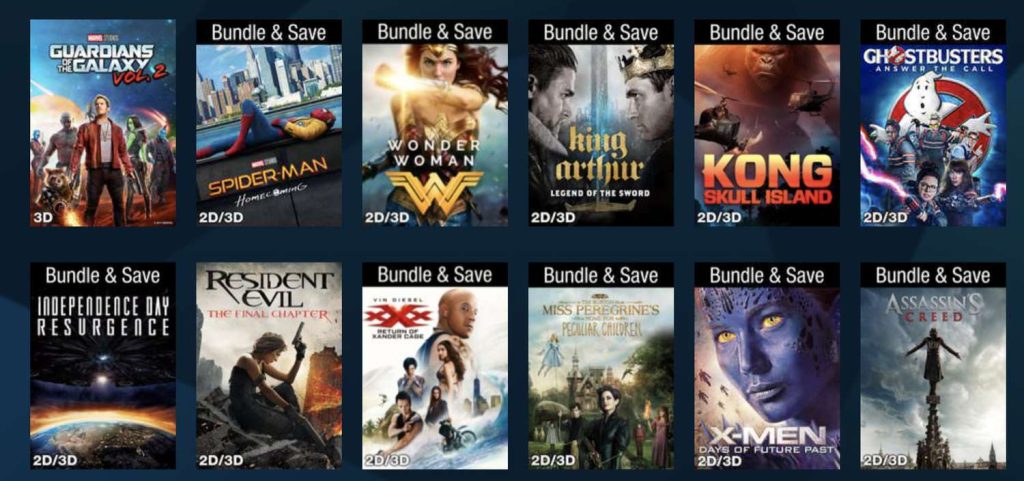
Vudu is an excellent choice for those who love tailored selections of high-quality movies. They specialize in providing cutting-edge visual quality with their dedicated UHD (ultra-high-definition) and Dolby Vision collections, ensuring that their users have access to some truly unforgettable 3D experiences.

5. Google Play Movies & TV

Another excellent platform where you can rent or purchase top-notch 3D content is Google Play Movies & TV. With new releases constantly being added to their already extensive library, it’s a great place to explore the latest in 3D cinematography.

6. FuboTV

FuboTV is a live sports streaming service that has recently ventured into the realm of 3D entertainment. This platform enables you to enjoy an array of 3D channels on their network, catering specifically to sports; a real treat for sports fans looking for an immersive viewing experience.

Conclusion

The future of online entertainment continues to evolve, and watching 3D movies is just a small part of this ever-changing landscape. As more people discover the thrill of watching movies in three dimensions, it’s essential to know the best platforms where you can access this content. In 2023, Netflix, Amazon Prime Video, Hulu, Vudu, Google Play Movies & TV, and FuboTV have established themselves as the leading destinations for on-demand 3D movies, ensuring that your next movie night leaves a lasting impression.

Top 5 Ways to Fix YouTube Thumbnails Not Showing

Introduction:

YouTube thumbnails are an essential aspect of creating an engaging and eye-catching channel. They provide a visual summary of the content, making it easier for viewers to find and click on your videos. However, there are times when YouTube thumbnails may not display correctly or at all. In this article, we will explore the top five ways to resolve this issue and ensure that your thumbnails show up as intended.

1.Refresh the Page

The simplest solution to fixing YouTube thumbnails is refreshing the web page. This action can resolve temporary issues such as slow loading time or an interrupted connection. Press F5 on your keyboard or click the reload button in your browser to refresh the page and check if the thumbnail appears.

2.Clear Browser Cache and Cookies

Sometimes, your browser’s cached data and cookies can interfere with YouTube thumbnail loading properly. To clear your browser cache and cookies, follow these steps:

– For Google Chrome: Click on the three-dot menu > More tools > Clear browsing data > Select Cached images, files, and Cookies > Click ‘Clear Data’

– For Mozilla Firefox: Click on the three-line menu > Options > Privacy & Security > Clear Data > Select Cached Web Content and Cookies > Click ‘Clear’

3.Update Your Web Browser

Outdated web browsers might have compatibility issues with the latest version of YouTube, causing thumbnails not to appear correctly. Make sure that you have installed the most recent version of your browser. Check for updates in your browser’s settings or by visiting its official website.

4.Anchor Text: Check if YouTube is Experiencing Technical Problems

Occasionally, technical problems with YouTube itself can cause thumbnails not to display correctly. To determine if this is causing the issue, check popular social media platforms like Twitter and Facebook for any mention of YouTube outages or visit websites like DownDetector that provide updates on potential service interruptions.

5.Use a Different Web Browser

It’s possible that the issue with YouTube thumbnails is related to the specific web browser you are using. Try accessing the video using a different browser, such as Google Chrome, Mozilla Firefox, Microsoft Edge, or Safari, in order to see if it resolves the thumbnail problem.

Conclusion:

Fixing YouTube thumbnail issues can be relatively simple by following these easy steps. Remember to refresh your page, clear browser cache and cookies, update your browser, check for YouTube technical issues, and try using a different browser. By employing these strategies, you should be able to resolve most problems with YouTube thumbnails not showing and keep your channel looking polished and attractive.

Top 6 Ways to Fix Blurry Screen Issue on Windows 11

Introduction:

The release of Windows 11 has brought several new features, improvements, and a sleek design. However, some users have reported a blurry screen issue after upgrading their devices. If you’re one of them, worry not! In this article, we’ll discuss the top six ways to fix the blurry screen issue on Windows 11.

1. Update Your Graphics Driver:

Outdated or incompatible graphics drivers can cause screen blur. To fix this issue, update your graphics driver by visiting your computer manufacturer’s website or using a dedicated driver update tool. Make sure you download and install the most recent version compatible with Windows 11.

2. Adjust Display Scaling:

Windows automatically scales your display based on the resolution and monitor size. Sometimes this scaling might not work correctly, causing a blurry display. To adjust display scaling, right-click on the desktop and choose “Display settings.” Look for the “Scale and layout” section and experiment with different scaling percentages to find the one that works best for you.

3. Disable Display Scaling for Specific Apps:

Some applications might not handle display scaling well, resulting in a blurry interface. You can disable display scaling for these apps by locating their executable files (usually in Program Files or Program Files (x86)). Right-click the executable file and select “Properties.” Go to the “Compatibility” tab and check “Disable fullscreen optimizations” and “Override high DPI scaling behavior.” Then click “OK” to save your changes.

4. Change Display Resolution:

Another possible reason for blurry displays is using an incorrect resolution. Navigate to Display settings by right-clicking on your desktop and selecting “Display settings.” Find the “Resolution” dropdown menu under the “Scale and layout” section, then choose the recommended resolution for your monitor.

5. Use Windows ClearType Text Tuner:

Windows 11 comes with a built-in ClearType Text Tuner to optimize text sharpness. To access this tool, type “ClearType” in the search bar and click on “Adjust ClearType text.” Check the box that says “Turn on ClearType” and follow the on-screen instructions to adjust text sharpness.

6. Perform a Clean Install of Windows 11:

If none of the above solutions work, you might want to perform a clean install of Windows 11. Make sure to back up your data before proceeding, as this will erase everything on your computer. Download and create a bootable Windows 11 installation media using Microsoft’s Media Creation Tool, then perform the clean installation following the on-screen prompts.

Conclusion:

The blurry screen issue in Windows 11 can be frustrating, but it can be resolved with these simple solutions. Try these top six ways to fix the problem and enjoy a crystal-clear display once again!

How to Check Call History in Boost Mobile

Introduction:

Boost Mobile, a leading prepaid wireless service provider, offers its customers numerous features and services including the ability to keep track of their call history. Checking your call history is essential for managing your phone usage, budgeting, and staying organized. In this article, we will guide you on how to check your call history on Boost Mobile’s online portal.

Step 1: Accessing Your Boost Mobile Account

Go to the Boost Mobile website at https://www.boostmobile.com/ and locate the “My Account” option at the top right of the webpage. Click on it and fill in your login credentials such as your email address and password. If you have not registered yet, you can create a new account by clicking on “Create a new account.”

Step 2: Access Your Call History

Once you are logged in, navigate to the “Activity” tab found under “My Account.” Clicking on this tab will provide various options, including call logs. Select “Call History” to access a history of all incoming and outgoing calls made to and from your phone.

Step 3: Get Detailed Information

Review the call history that appears on your screen. You can view more information about each call by clicking on the specific entry. This will show details such as date, time, duration, number called or that called you, and whether it was an incoming or outgoing call.

Step 4: Export Your Call History (Optional)

If you wish to keep a record or analyze your call history for personal or professional reasons, you can export the log as a CSV file. To do so, find the “Export” button located near the top of the call history page. Click on it and choose the destination where you want to save the CSV file.

Step 5: Viewing Monthly Statements (Optional)

In addition to viewing individual calls in your call history, you can also access your monthly statements which provide an overview of all your usage. Go back to the “Activity” tab under “My Account” and select “Statements.” From here, you can view or download a PDF version of your usage details, including calls made, messages sent, and data used during the billing cycle.

Conclusion:

Monitoring your call history on Boost Mobile is a simple process that allows you to keep track of usage, manage your budget, and ensure you always stay organized. Follow these steps to easily check and export your call history on Boost Mobile’s online portal. Happy managing!

Is it Still Worth Buying a PS4 in 2023?

Introduction:

The gaming industry is ever-evolving, with new consoles and technology being released regularly. As 2023 rolls in, many gamers are still contemplating whether it’s worth investing in a PlayStation 4 (PS4) console. To help you make an informed decision, we’ve rounded up some key factors to consider before purchasing a PS4 in 2023.

Affordable Pricing:

With the release of the PlayStation 5 (PS5), the prices of PS4 consoles have dropped significantly. This makes it more affordable for those on a tight budget or those looking to add to their gaming collection without breaking the bank.

Wide Selection of Games:

One of the most attractive features of the PS4 is its vast library of games. With over 2,000 titles available, you’re bound to find several games that cater to your interests. Moreover, many popular games like The Last of Us Part II, Spider-Man: Miles Morales, and God of War are still exclusive to the PlayStation platform.

Backward Compatibility:

One major concern for gamers who want to upgrade their consoles is whether or not their existing library can be played on the newer system. The good news is that PS5 supports backward compatibility for most PS4 games, which means you won’t have to start from scratch when transitioning between the two systems.

Though Gaming Community Support:

Despite being an older console, the PS4 still has a massive and passionate gaming community behind it. You’ll find endless resources online on troubleshooting, tips, and tricks for various games as well as a welcoming community that will keep you engaged and entertained.

Future-proofing Considerations:

It’s essential to keep in mind that as technology advances, game developers will eventually shift their focus towards developing games for newer consoles, functioning at an improved level to deliver better gaming experiences. Thus, it’s possible that fewer new games will be released for the PS4 in the coming years as developers prioritize creating games optimized for PS5 and other next-generation consoles.

Conclusion:

Ultimately, deciding whether or not to purchase a PS4 in 2023 depends on your personal preferences, budget, and gaming habits. If you’re looking for a more affordable console with an extensive library of games and don’t mind playing on older hardware, the PS4 can still be a great choice. However, if you’re interested in the latest technology and graphics enhancements that next-generation consoles like the PS5 have to offer, it might be worth waiting a little longer before making your purchase

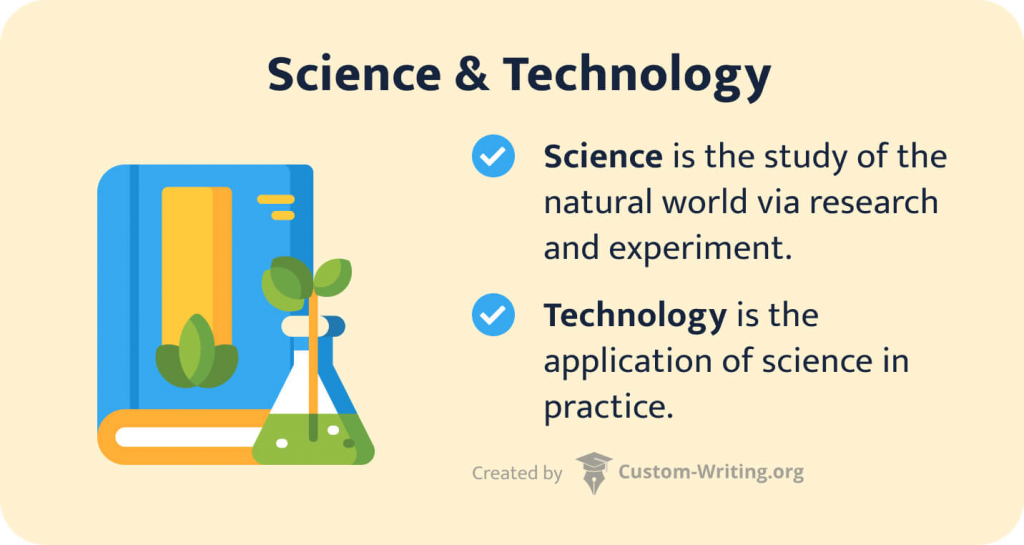
Exploring Science and Technology Topics for Debate

Introduction:

As technology and scientific advancements continue to reshape our world, in-depth and informed discussions become increasingly important. New discoveries, ethical considerations, and their societal impact often give way to passionate debates among individuals. In this article, we will delve into some fascinating science and technology topics worth debating.

1. Artificial Intelligence and Job Loss

Advancements in artificial intelligence (AI) have the potential to revolutionize various industries. However, as AI systems improve efficiency and productivity, a critical concern arises – will AI lead to massive job losses? Is it an imminent threat to employment, or will it create new opportunities for career growth?

2. Genetic Engineering and Designer Babies

Genetic engineering has the potential to cure genetic disorders, improve food production, and solve environmental problems. But when applied to humans, it raises ethical questions about the creation of so-called “designer babies”. Should we modify human genes for non-therapeutic reasons?

3. Renewable Energy versus Fossil Fuels

As global concerns for the environment grow more pressing each day, many people are pushing toward renewable energy solutions as an alternative to fossil fuels. Can renewable energy sources provide enough power for all our needs? What will be the primary obstacles in transitioning towards cleaner forms of energy?

4. The Role of Social Media in Society

Social media platforms have transformed how people communicate and share information globally. But concerns persist about their impact on mental health, privacy, misinformation, and democracy. Should governments regulate social media use? How can societal problems associated with online platforms be addressed effectively?

5. Space Exploration: Cost versus Benefit

Space exploration fosters innovation, scientific discoveries, and promotes cross-national cooperation. However, funding these projects require substantial financial resources that could be spent on pressing issues on Earth instead. Should humanity prioritize space exploration or focus resources on addressing terrestrial problems?

6. Internet Privacy versus Security

The rise of the internet has brought immense benefits; however, it has also impacted our privacy. Governments and corporations can access private data for surveillance and marketing purposes. Should online privacy be sacrificed to enhance security or should individuals retain their right to internet anonymity?

7. Animal Testing in Scientific Research

Animal testing has significantly contributed to advances in medicine, product safety, and understanding fundamental biological processes. But there are ethical concerns when using animals for experiments that may cause suffering. Is animal experimentation necessary to advance science, or should non-animal alternatives be prioritized?

8. The Implications of 3D Printing

3D printing is revolutionizing multiple industries, allowing rapid prototyping and the production of customized products on demand. However, this technology raises concerns about intellectual property rights, environmental effects, and potential misuse for criminal purposes. Should regulations be implemented for 3D printing, or would they impede innovation?

Conclusion:

Each of these science and technology topics offers intriguing questions and complex dilemmas around ethics, societal impact, and resource allocation. Engaging in informed debates about them enriches our understanding of technological progress and allows us to better plan for the future as we grapple with rapid advancements in science and technology.