
Tech Advice

How to Find Someone with a First Name & City

Introduction:

In the age of technology and the internet, locating someone has become easier than ever before. Whether you are trying to reconnect with an old friend, find a family member or locate someone for professional purposes, there are many online resources that can assist you in your search. In this article, we will discuss how to find someone with just their first name and city.
Using Social Media Platforms:

1. Facebook: One of the most popular social media platforms, Facebook allows you to search for people using their name, school, workplace, city, and other parameters.

To conduct a search on Facebook:

– Log in to your Facebook account.

– In the search bar, type the first name and city.

– Use filters like education and workplace to narrow down your search results.

2. LinkedIn: If you suspect that the person you are looking for is a working professional, LinkedIn is your best bet. This platform allows users to search using names, locations, education institutions, and workplaces.

To conduct a search on LinkedIn:

– Log in or create a LinkedIn account.

– In the search bar at the top of the page, type in the first name and city or location.

– Review the results and narrow them down by industry or connections.

3. Instagram and Twitter: While these platforms do not offer specific filters to narrow down your search based on city or location, searching for users with specific hashtags pertaining to their city or interests could potentially lead you to them.

Utilizing People Search Engines:

1. Whitepages.com: Whitepages is an online directory service that aggregates public records information. Users can search for individuals using names and locations.

To use Whitepages:

– Type the first name and city in the provided fields on their homepage.

– Browse through the results list until you find potential matches.

2. Spokeo: Spokeo compiles data from various public records, offering search functionality using minimum details, such as first name and city.

To use Spokeo:

– Visit their website and enter the required information in the search bar.

– Evaluate the results to determine which profiles match your search criteria.

3. PeopleFinder.com: This online service allows users to search for people using a variety of data points.

To get started with PeopleFinder:

– Visit their website and enter the first name and city into the provided fields.

– Browse through the results and identify possible matches.

Conclusion:

Finding someone with just their first name and city can be a challenge, but not an impossible feat. By utilizing various social media platforms and people search engines, you increase your chances of locating that person. Although privacy should always be considered when attempting to locate someone, these resources are helpful in reconnecting you with long-lost friends or family members.

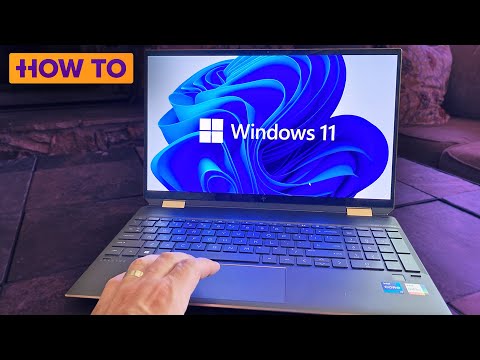
Top 6 Ways to Fix Washed Out Colors After Windows 11 Update

Introduction:

The recent Windows 11 update has brought several new features and improvements to its users. However, some people have reported issues with washed out or faded colors on their screens after the update. If you’re experiencing this problem, worry not! Here are the top six ways to fix washed out colors after the Windows 11 update.

1. Change Display Settings:

One of the easiest solutions is to adjust your display settings. Head over to Settings > System > Display. Under “Multiple displays,” click on “Advanced display settings.” From here, you can change the refresh rate and adjust color calibration. Ensure that HDR is enabled if your monitor supports it, as this can help enhance color vibrancy.

2. Update Graphics Drivers:

Outdated graphics drivers may contribute to color problems after a Windows update. To update your graphics drivers, right-click on the Start button and select “Device Manager.” Locate and expand the “Display adapters” section, right-click your graphics card, and choose “Update driver.” Follow the on-screen prompts to complete the process.

3. Adjust NVIDIA Control Panel Settings:

If you’re using an NVIDIA graphics card, open the NVIDIA Control Panel by right-clicking on your desktop and selecting it from the context menu. Under “Display,” click on “Adjust desktop color settings.” Change the digital vibrance slider to your desired level and apply your changes.

4. Calibrate Your Monitor:

Calibrating your monitor can improve color accuracy and reduce wash-out issues. To calibrate your monitor on Windows 11, go to Settings > System > Display and click on “Color calibration” under Advanced display settings. Follow the calibration wizard’s steps to complete the process.

5. Check Cable Connections:

Washed out colors can also be caused by loose or faulty cable connections between your computer and monitor. Check if all cables are securely connected and replace any damaged cables with new ones.

6. Adjust ClearType Text Settings:

The Windows 11 update may have caused text to appear washed out or blurry. To fix this, head over to Settings > Personalization > Fonts and click on “Adjust ClearType text.” Enable the ClearType option and follow the wizard’s steps, which will guide you through a series of text samples for optimum clarity.

Conclusion:

Washed out colors after a Windows 11 update can be frustrating, but these six simple solutions should help restore color vibrancy on your display. After trying these steps, you’ll be able to enjoy all the incredible new features that Windows 11 has to offer with bright, vivid colors once again.

Optimizing Wi-Fi Router Antennas for Maximum Efficiency

Introduction:

In today’s connected era, Wi-Fi has become a staple in households and workplaces. Relying on wireless networks for both personal and professional use is the norm and having a strong, reliable connection is crucial to consistent productivity and enjoyment. One important aspect often overlooked in ensuring top Wi-Fi performance is the positioning of router antennas. In this article, we will discuss ways to position Wi-Fi router antennas for optimized performance.

The Importance of Proper Antenna Positioning:

The positioning of Wi-Fi router antennas plays a critical role in determining the coverage, range, and performance of your wireless network. Properly positioned antennas can minimize dead spots, improve signal strength, and provide maximum coverage in your home or workspace.

Directionality and Types of Antennas:

Before diving into antenna positioning, let’s briefly discuss two types of antennas – omnidirectional and directional.

1. Omnidirectional antennas: These antennas are designed to broadcast the signal in all directions equally. Most home routers come with omnidirectional antennas as they provide consistent coverage throughout a typical living space.

2. Directional antennas: These antennas focus the signal in a specific direction. They’re helpful when you need to target a specific area or device that is further away from the router.

Positioning Strategies for Home Wi-Fi Router Antennas:

Here are some best practices for positioning home Wi-Fi router antennas for optimal results:

1. Vertical orientation: For most home routers that come with two or more omnidirectional antennas, the optimal positioning is to have them upright in a vertical orientation. This alignment maximizes their ability to broadcast the signal horizontally across multiple floors.

2. 45-degree angle: If you face issues with connectivity or speed on devices situated above or below the floor where your router is located, adjusting one antenna to a 45-degree angle can help. This angled position allows for an enhanced vertical Wi-Fi signal broadcast.

3. Diagonal placement: For routers with 3 or more antennas, diagonal positioning can provide improved coverage. Place one antenna vertically, one at a 45-degree angle, and another horizontally to ensure even distribution in all directions.

4. Minimize interference: Keep the router and its antennas away from interference-causing objects such as metal appliances, thick walls, and sources of electromagnetic waves like microwaves or cordless phones.

5. Consider directional antennas: If you still find weak spots in your coverage area or need to focus on a specific location, consider incorporating directional antennas into your setup.

Conclusion:

The efficiency and performance of a Wi-Fi network depend on various factors like the placement of the router, the type of antennas used, and their positioning. By following the aforementioned tips, you can optimize your home Wi-Fi network’s coverage and improve connectivity while minimizing frustrating dead spots. Remember that every space is different; experiment with antenna configurations to find the best alignment for your unique environment.

How to Know if Your iPhone is Fast Charging

Introduction:

Fast charging has become a must-have feature for many smartphone users, especially those who need a quick boost of battery life during their busy daily routine. iPhone users can also benefit from this incredible technology. In this article, we’ll guide you on how to know if your iPhone is fast charging.

1. Make Sure Your iPhone Model Supports Fast Charging

First and foremost, check if your iPhone model supports fast charging. Apple introduced the fast charging feature in its iPhone lineup starting with the iPhone 8, 8 Plus, and X models. All subsequent iPhones, including the iPhone XR, XS, XS Max, SE (2nd Gen), 11, 11 Pro, 11 Pro Max, 12 Mini, 12, 12 Pro, and 12 Pro Max can enjoy fast charging as well.

2. Use a Compatible Charger and Cable

To enable fast charging on your iPhone, you’ll need to use a compatible charger and cable that supports USB-C to Lightning charging. Apple’s official chargers rated at either 18W or higher provide the fastest charging experience; however, some third-party chargers may also support fast charging as long as they adhere to the recommended power specifications.

3. Check Fast Charging Status Indicators

There’s no direct way or notification to show you that your iPhone is fast charging. However, you can estimate how quickly your device is charging through some indirect indicators:

A) Battery Percentage Indicator: Observe the battery percentage during the first few minutes of plugging in your device for fast charging. If it goes up by around 1% per minute or higher consistently during the first few minutes (when battery percentage is below ~80%), it’s an indication of efficient fast charging.

B) Estimated Time Until Full: Another method to gauge if your device is fast-charging is by looking at the estimated time until full (ETUF), which appears on the lock screen after plugging in your phone. Typically, a device using fast charging would show an ETUF of around 1 hour or lower.

C) Temperature: Fast charging usually comes with increased temperature. If you notice that your iPhone is slightly warming up during the charging process, it might be a sign of fast charging.

Conclusion

In summary, to know if your iPhone is fast charging, make sure your device supports the feature, use a compatible charger and cable, and check for indirect indicators such as battery percentage increase rate, estimated time until full, and device temperature. Always remember to use official or certified cables and chargers to ensure a safe and optimal charging experience.

How to Charge a Lenovo Laptop without Its Charger

Introduction:

In today’s world, where laptops have become essential tools for various tasks, there’s nothing more disconcerting than a laptop that’s running out of battery and you don’t have a charger at hand. In this article, we will discuss some methods by which you can charge your Lenovo laptop without its original charger.

Method 1: Use a Universal Charger

One of the most effective ways to charge a Lenovo laptop without its original charger is by using a universal charger. These chargers are designed with multiple adapter tips to cater to different laptop models and brands, including Lenovo. Make sure to select the right voltage setting as per your laptop’s requirement, connect the appropriate tip with your laptop’s charging port, and you’re good to go.

Method 2: Employ an External Battery Charger

Another option is to use an external battery charger specifically designed for laptop batteries. You will have to remove your Lenovo laptop’s battery, place it in the external charger, and connect the charger to a power source. Once it’s charged fully or sufficiently, reattach the battery to the laptop.

Method 3: Car Chargers or Power Banks

A car charger can charge various devices on-the-go, including your Lenovo laptop. Ensure that the car charger has proper output specifications that match your laptop’s requirements. Similarly, you can also use power banks capable of charging laptops to give a boost to your Lenovo device.

Method 4: USB-C Charging (For compatible models)

Newer Lenovo laptops with USB-C charging support can be charged using USB Type-C cables or adapters from devices like smartphones, tablets, or other power sources compatible with USB-C Power Delivery (PD). Connect one end of the cable to your laptop’s USB-C port and the other end to a suitable device or power source with sufficient output.

Conclusion:

In case you find yourself without your Lenovo laptop’s original charger, don’t despair. With the help of universal chargers, external battery chargers, car chargers, power banks, or USB-C charging (depending on your laptop model), you can continue using your device without any major interruptions. Always remember to keep an eye on voltage and output settings to avoid any potential damage to your laptop.

How to Create a Throwaway Account on Reddit

Introduction:

Reddit is a popular social media platform where individuals can share news, discuss various topics, and engage with like-minded users. Sometimes, people prefer to participate in discussions or post content anonymously by creating a throwaway account. A throwaway account is an alternate or temporary account created on Reddit for situations where you may want to protect your main account’s identity or reputation. This article will guide you through the steps to create a throwaway account on Reddit.

Step 1: Open the Reddit Website

Visit the Reddit website by navigating to https://www.reddit.com/.

Step 2: Sign up for an Account

Click the “Sign Up” button located at the top right corner of the homepage. A sign-up window will appear.

Step 3: Provide your Email (Optional)

Reddit will ask for your email address, but this step is optional if you’re creating a throwaway account. Since this account is meant for temporary or anonymous use, providing your email address is not necessary. Simply click “Next” to continue.

Step 4: Choose a Unique Username

You will be prompted to choose a username for your throwaway account. Select one that doesn’t have any connection to your primary Reddit account or any other online accounts you may have. This ensures that your anonymity remains protected.

Step 5: Set a Password

Enter a strong password that you will be able to remember easily but difficult for others to guess. The password should be unique and not used with any of your other accounts.

Step 6: Complete the Sign-Up Process

Confirm that you’re not a robot by completing the captcha challenge presented. After you’ve successfully entered the captcha, click “Sign Up” again. You now have a throwaway account on Reddit.

Conclusion:

A throwaway account allows users to post content and engage in conversations on Reddit anonymously and without jeopardizing the user’s main account. Creating a throwaway account is a simple and straightforward process. Remember to keep your throwaway account separate from your primary account and utilize it only when necessary to maintain your online privacy.

Comparing the Galaxy S23 to Your Samsung Phone: Should You Upgrade?

Introduction

The Samsung Galaxy S series is known for its feature-rich devices, aimed at those who want top-of-the-line performance and design. With the upcoming release of the Galaxy S23, many people are considering upgrading their existing phone. Before taking the plunge, learn how it stacks up against your current Samsung phone to make an informed decision.

Display

The Galaxy S23 comes with a stunning 6.8-inch AMOLED display with a high resolution of 3200 x 1440 pixels. Its refresh rate is also impressive at 120Hz, providing smooth and fluid interactions. Depending on your current phone’s screen size and quality, the upgrade might be worth it if you appreciate sharp visuals and a larger display.

Performance

Equipped with an Exynos 2200 chipset (or a Snapdragon 8cx Gen 3 in some regions), the new Galaxy S23 offers considerable performance improvements over older models. These powerful chipsets provide faster processing speeds and better graphics capabilities, meaning quicker app load times and smoother overall performance.

Battery Life

One of the most important factors for any smartphone user is battery life. The Galaxy S23 has a generous 5,000mAh battery capacity, which should easily last through an entire day of heavy usage without requiring a charge. If your current phone struggles to maintain power throughout the day, this might be an attractive upgrade reason.

Camera

The camera system on the Galaxy S23 is significantly improved compared to older Samsung phones. The phone features a triple-lens camera setup: a 108MP primary lens, a 12MP ultra-wide lens, and a 10MP telephoto lens. It also supports up to 8K video recording capabilities. If mobile photography is essential to you or you want the latest camera technology, it might be worth considering an upgrade.

New Features

Samsung introduces new features and technologies with each generation of the Galaxy S series. Some standout additions on the Galaxy S23 include an in-display fingerprint sensor, improved facial recognition, S Pen support, and Water and Dust Resistance (IP68). These features might tip the scales if you’ve been holding out for specific enhancements.

Conclusion

In summary, upgrading to a Galaxy S23 from your current Samsung phone depends on your personal needs and preferences. If you value a larger display, improved performance, longer battery life, better camera capabilities, or specific features such as the S Pen support and enhanced security options – it might be time to upgrade. Otherwise, if your existing phone is still serving you well, waiting until the next iteration could be a more cost-effective strategy.

Troubleshooting Depth Effect Issues on iOS 16 Lock Screen – Helpful Fixes You Can Try

Introduction:

In the world of smartphones, ensuring a seamless user experience is crucial. Apple’s iOS has long been praised for its aesthetics, stability, and innovative features. One of these features is the depth effect which transforms simple photos into professional-looking portraits by adding a blur to the background. However, some users have reported problems with the depth effect not working on their iOS 16 lock screen. In this article, we will explore potential solutions to fix this issue.

1. Restart Your iPhone

The first and most basic step in troubleshooting any software-related problem is to restart your device. Turn off your iPhone, wait for a few seconds, and then turn it back on. This simple action might resolve your depth effect issue.

2. Update Your iPhone’s Software

Apple often releases software updates to fix bugs and enhance functionality. To ensure your device is running the latest version of iOS, go to Settings > General > Software Update and check for available updates.

3. Disable Portrait Mode Restrictions

For depth effect to work as intended, ensure that the Portrait mode restrictions are disabled. To do this, head to Settings > Screen Time > Content & Privacy Restrictions > Allowed Apps and make sure Camera and Photos are turned on.

4. Check Camera Settings

Sometimes, the problem could be due to incorrect settings within the Camera app itself. Open the Camera App and ensure it’s set to “Portrait” mode. Additionally, make sure that lighting effects are not causing issues with depth effect functionality.

5. Reset All Settings

If none of the above steps worked, try resetting your iPhone’s settings as a last resort. Go to Settings > General > Reset and then tap “Reset All Settings.” This action will revert your configuration settings to their default values but won’t erase any personal data or third-party apps.

Conclusion:

In our fast-paced tech world, it’s natural to encounter occasional glitches or software issues. If your iOS 16 device’s depth effect isn’t working on the lock screen, don’t panic! The provided troubleshooting measures cover a range of possible solutions, one of which should resolve the issue. Even so, if the problem persists, it is recommended to consult Apple Support for personalized assistance.

TikTok vs YouTube: Which One Is Right For You?

Introduction:

Choosing the right social media platform to showcase your content can be a bit baffling. With so many options available, zeroing in on the best platform for your creative expression can be a challenge. In the world of video sharing, two powerhouses dominate the scene – TikTok and YouTube. In this article, we will explore these two video-sharing giants and help you decide which one is right for you!
The Platforms:

1. TikTok

TikTok is a short-form video platform that allows creators to share videos of up to 60 seconds in length. Known for its engaging and entertaining content, TikTok has quickly become the leading platform for bite-sized, viral videos. It boasts an impressive user base of over 1 billion active users.

Key Features:

– Short-form content (15 – 60 seconds)

– User-friendly interface

– In-app editing and effects

– Algorithm-based content recommendation

2. YouTube

YouTube is the grandfather of online video platforms, founded back in 2005. It offers a wide range of video formats catering to an extensive array of interests. From educational videos and vlogs to music and gaming channels, YouTube has established itself as a diverse space with something for everyone.

Key Features:

– Long-form content (multiple minutes to hours)

– Wide variety of content categories

– Robust search engine

– Monetization opportunities

Comparing The Two:

1. Content Length

The most significant difference between these two platforms is the length of videos created and shared. While TikTok promotes fast-paced, condensed content designed for quick consumption, YouTube caters towards an audience looking for a more in-depth viewing experience.

2. Target Audience

If your target audience covers a broad age range or interests spanning multiple genres, YouTube’s vast content categories will likely be more suitable for your needs. On the other hand, with its predominantly young user base, TikTok is ideal for those seeking to engage with Gen Z and younger millennials.

3. Monetization

Creators looking to earn a revenue from their content may find YouTube the better choice, thanks to its well-established monetization policies including ads and YouTube Premium. However, TikTok is also developing new monetization options through its Creator Fund and other initiatives.

4. Creativity & Tools

TikTok’s in-app editing features, enhance the overall appeal of the platform for creators looking for an easy-to-use and entertaining video creation tool. YouTube, though offering some native editing tools, often relies on external video editing software for more polished content.

Conclusion:

In the ultimate showdown between TikTok vs YouTube, it boils down to what type of content you want to create and who you want to reach. If short-form videos and a youthful audience align with your goals, then TikTok might be the platform for you. However, if you prefer creating a wide variety of long-form content or seek monetization opportunities, then YouTube would be the better choice.
Ultimately, identifying your niche and preference will help you make an informed decision that allows your creativity to flourish with the right audience.

Pokemon Scarlet and Violet: Pushing the Switch Beyond Its Limits

Introduction

Pokemon Scarlet and Violet have been highly anticipated by fans around the world. With an array of new features, Pokemon designs, and a promise to take the franchise to new heights, expectations are high. However, as we dive into a review of these latest installments in the series, it’s evident that the limitations of the Nintendo Switch are holding these games back from their full potential.

Graphics and Performance

The graphics in Pokemon Scarlet and Violet are a mixed bag. On one hand, the new designs for both characters and Pokemon are visually appealing, boasting vibrant colors and a unique style that distinguishes them from previous generations. However, when it comes to performance, things start to go downhill.

The Switch struggles to keep up with the high-quality graphics of these games. Instances of frame rate drops and lagging animations become more frequent as the adventure progresses. This is particularly noticeable in crowded areas or when multiple Pokemon appear on screen during battles.

New Gameplay Mechanics and Features

Despite its technical shortcomings, Pokemon Scarlet and Violet introduce an array of exciting new gameplay mechanics and features aimed at enhancing player experience. Examples include updated battle mechanics that add another layer of strategy to the game or customizable trainer outfits that allow players to express themselves while becoming a Pokemon Master.

Additionally, a robust ecosystem filled with diverse environments brings even more fun to exploring new regions and discovering hidden secrets. This is further complemented by dynamic weather effects that change gameplay elements such as certain Pokemon appearing only during specific conditions.

World Design

Pokemon Scarlet and Violet’s world design is genuinely astonishing. With diverse regions ranging from dense forests to bustling cities, players can truly embrace that sense of adventure as they traverse through various landscapes. The designers paid great attention to detail here, bringing each area to life with unique aesthetics and landmarks.

However, it’s evident that the vastness of this world is also one of the key factors affecting the performance of the game on the Switch. The console struggles to render this ambitious open-world smoothly, which unfortunately distracts from the experience and immersion.

Conclusion

Scarlet and Violet are ambitious titles attempting to push the boundaries of what a Pokemon game can be. However, it’s evident that the limitations of the Nintendo Switch are preventing these games from reaching their full potential. While players may still enjoy the updated gameplay mechanics, captivating world design, and new Pokemon to catch, they must brace themselves for performance issues that, at times, hinder the overall gaming experience.