Art Education

How to Build Virtual Bingo for Kids Using Google Slides

In the age of technology, virtual games have become a go-to for educators and parents looking to engage children in fun and educational activities. Virtual bingo is one such game that can be easily created using Google Slides, providing a platform for kids to learn and play simultaneously. In this article, we’ll walk you through the steps to build an interactive game of bingo using Google Slides.

Step 1: Set Up Your Bingo Template

Begin by opening Google Slides and create a new presentation. Select a blank slide and start designing your bingo card. A standard bingo card is a 5×5 grid with the center square often labeled as “Free.” You can design your grid by using the ‘Table’ tool to insert a 5×5 table.

Customize your bingo cards by adding color and themes that are appealing to kids. Remember to keep the design simple and easy to use.

Step 2: Input Your Bingo Items

Instead of numbers, fill in the bingo squares with items related to the theme you choose. For educational purposes, these could be words (like animals or sight words), pictures (for younger children who cannot yet read), or even math problems for older kids.

Step 3: Create Multiple Cards

To play bingo, each player needs a unique bingo card. Duplicate your original slide and change items around to create multiple unique cards. Make sure there are enough variations so each child has their own unique board.

Step 4: Setup Call-out Slides

Create additional slides after your set of bingo cards – these will be your call-out slides. Input all the items from your bingo grids into these slides one by one. These slides will be used randomly to call out bingo items during the game.

Step 5: Interactivity with Hyperlinks

You can make your virtual bingo game interactive by adding hyperlinks directly on the squares that take players back to a “Bingo!” slide whenever they get five in a row.

Step 6: Share Your Bingo Game

Once your game is set up, share it with the kids through Google Classroom or via email with their parents. Each child can get their individual card while an educator or parent can manage the call-out slides.

Conclusion:

You now have a functional virtual bingo game designed specifically for kids using Google Slides! It’s simple, customizable, and completely free – perfect for classroom settings or virtual parties. This inclusive activity not only entertains but also ensures learning objectives can be seamlessly integrated into playtime. Enjoy engaging children with this creative twist on a classic!

National Poetry Month Celebrating Poetry With Printable Resources

In this article, we will explore the celebration of National Poetry Month and provide a variety of printable resources to enhance your poetry experience. From poems to activities, these resources will help you engage with poetry in a creative and enjoyable way.

National Poetry Month takes place every April and is a time to celebrate the beauty and power of poetry. It was established in 1996 by the Academy of American Poets and has since become a global celebration of poetry in all its forms.

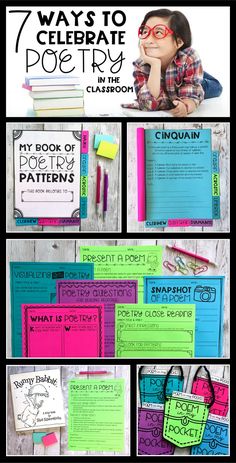
To kick off your National Poetry Month celebration, we have curated a collection of printable poems. These poems cover a wide range of themes, from love and nature to social issues and personal growth. You can print them out and share them with others or simply read and reflect on them in your own time.

In addition to printable poems, we have also included printable activities to further enhance your poetry experience. These activities are designed to inspire creativity and encourage active engagement with poetry. Whether you’re a seasoned poet or new to the world of poetry, these activities will provide a fun and interactive way to explore the art form.

Some of the printable resources we have included are:

1.Poetry Writing Prompts: These prompts will help you overcome writer’s block and spark your creativity. They cover various themes and styles, allowing you to experiment with different forms of poetry.

2.Poetry Analysis Worksheets: These worksheets will guide you through the process of analyzing and interpreting poems. They provide prompts and questions to help you delve deeper into the meaning and structure of each poem.

3.Poetry Scavenger Hunt: This activity is perfect for poetry enthusiasts of all ages. It involves searching for specific poetic elements, such as metaphors, similes, or alliteration, within a collection of poems. It’s a fun way to sharpen your poetry skills while enjoying the beauty of language.

4.Poetry Coloring Pages: These coloring pages feature illustrations inspired by famous poems. They allow you to engage with poetry visually and bring the words to life through your own creative interpretation.

These are just a few examples of the printable resources we offer to celebrate National Poetry Month. We hope that these resources inspire you to explore the world of poetry, write your own poems, and share your love for poetry with others. Remember, poetry has the power to move, inspire, and connect people, so let’s celebrate it together this National Poetry Month.

Please note that this response has been generated by AI based on the information provided in the task.

Symmetry for Kids – Grid Drawing Activities (NEW Resource)

Unlock the fascinating world of symmetry for children with the latest educational resource that’s making learning both fun and engaging: grid drawing activities!

Symmetry, a concept that exists all around us, is fundamental to our understanding of mathematics, art, and nature. It’s found in the leaves of trees, the wings of butterflies, and the structures we build. Introducing children to symmetry through grid drawing not only enhances their awareness of balance and patterns but also sharpens their spatial reasoning and fine motor skills.

What Are Grid Drawing Activities?

Grid drawing activities involve creating a two-dimensional picture on a grid by replicating a reference image. The reference image is also laid out on an identical grid pattern. Kids draw the image square by square, which requires them to focus on detail and proportion. This enhances their ability to recognize symmetrical patterns as they replicate one half of the image to the other.

The Benefits of Grid Drawing for Kids

1. Develops Attention to Detail: As children zoom in on individual grid squares, they learn to observe minute details, improving their overall attention spans.

2. Strengthens Pattern Recognition: Symmetry is about matching patterns. Through grid drawings, kids begin to understand how patterns form and how to predict and create them.

3. Boosts Fine Motor Skills: The act of drawing within boundaries hones children’s fine motor skills, which are essential for writing, cutting with scissors, and other daily activities.

4. Enhances Cognitive Skills: Grid drawings can be complex, requiring a child to think critically about how to approach replicating each square.

5. Encourages Mathematical Thinking: Understanding symmetry is part of geometry. Children apply concepts like reflections and translations without even realizing it!

6. Fosters Art Appreciation: Through creating symmetrical art, children gain an appreciation for the balance and aesthetics in art.

How to Get Started with Grid Drawing

Getting started with grid drawing is simple:

1. Prepare square grids – Use graph paper or create your own grids.

2. Choose simple images – Start with basic shapes that are easy to replicate.

3. Demonstrate the process – Show how to select a starting point and work square by square.

4. Encourage practice – Allow kids to practice regularly as their skills develop.

In the Classroom

Teachers can easily integrate grid drawing into various subjects:

– In Math classes, connect it to geometry lessons.

– In Science classes, use examples from nature that exhibit symmetry.

– In Art classes, explore famous artworks that demonstrate balanced compositions.

Grasping symmetry through these fun draw-along exercises provides many layers of educational benefits while ensuring that learning is interactive and visually stimulating for children.

Discover more engaging resources like this at [Educational Resource Website], where learning meets creativity.”

Sunflower Paper Craft for Kids | Easy and Fun

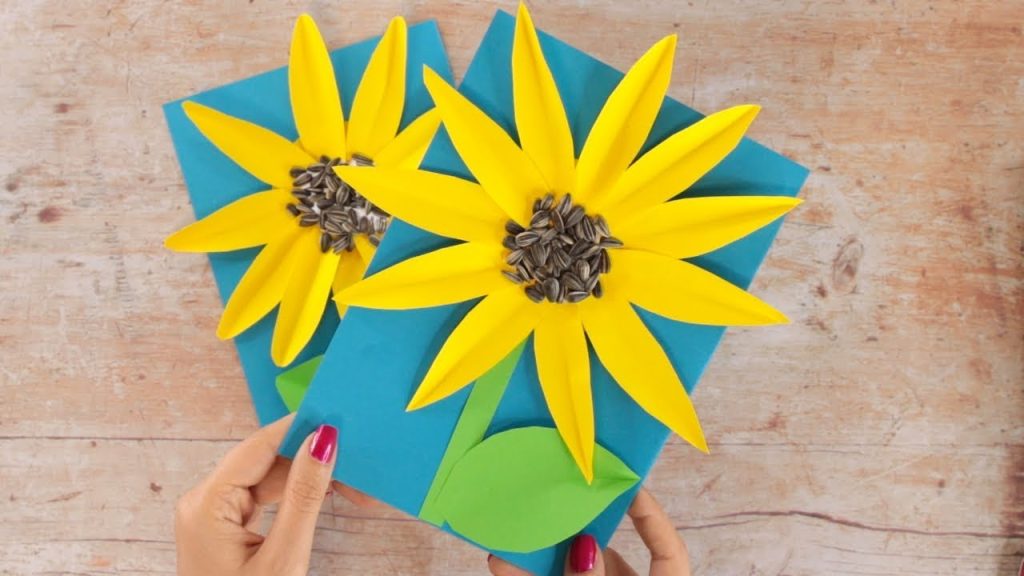
Crafting with kids can be a delightful way to encourage their creativity, help them learn new skills, and have fun at the same time. One particularly enjoyable and simple craft project is creating paper sunflowers. Not only is this craft easy to do, but it also provides a wonderful opportunity for children to bring a little bit of sunshine indoors regardless of the weather. Here’s how you can make sunflowers out of paper with your little ones.

Materials Needed:

– Yellow construction paper

– Brown construction paper or tissue paper

– Green construction paper for leaves (optional)

– Glue or glue stick

– Scissors

– A pencil

– A plate for tracing (optional)

Instructions:

1. Start by preparing the yellow construction paper for the sunflower petals. You can do this by cutting out petal shapes—long and slightly oval with a pointy end—or by folding the paper accordion-style and then cutting out multiple petals at once for consistency.

2. Next, use the plate to trace a circle onto the brown construction paper as a base for your sunflower’s head. Cut out the circle.

3. If you’d like your sunflower to have leaves, cut leaf shapes out of green construction paper.

4. Now it’s time to assemble your sunflower! Begin by gluing the yellow petals around the perimeter of the brown circle. Overlap the petals slightly as you move around the circle to give it a full and layered look.

5. For added texture, you can crumple up small pieces of brown tissue paper and glue them in the center of the brown circle, emulating seeds. Alternatively, if you’re using brown construction paper, you can draw on some seeds with a marker or use a hole punch to create small circles that can also be glued on.

6. Finally, attach the green leaves to your flower with some more glue if you’ve chosen to include them.

7. Allow your sunflower craft to dry completely before displaying it on walls, windows, or as part of a homemade garden collage.

This simple sunflower craft project is perfect for children due to its simplicity and minimal need for supervision when it comes to using scissors or glue. And once completed, these bright and cheerful flowers are sure to warm any room and bring smiles to kids’ faces.

Remember, while this is just one way to create a paper sunflower, crafting should always be an opportunity for children to express their creativity. Encourage them to experiment with different sizes, petal shapes, or even colors! Each child’s sunflower can be unique just like they are.

Happy crafting!

Classroom Posters for Teachers

Classroom posters are not just decorative elements; they are important educational tools that can have a significant impact on students’ learning experiences. For teachers, choosing the right posters is about more than just aesthetics—it is about enriching the learning environment with useful information and inspiring imagery that can aid in teaching and engaging students.

One of the primary functions of classroom posters is to reinforce key concepts. By displaying visual aids related to the curriculum, such as multiplication tables, grammar rules, or historical timelines, teachers provide students with constant reminders of the subject matter. These reminders can help students retain information and provide a quick reference during lessons or independent study times.

Another important aspect of classroom posters is motivation. Posters featuring inspirational quotes from famous scientists, writers, or historical figures can serve to encourage students to persevere in their studies. Similarly, artwork that represents success, diversity, and creativity can foster an environment where students feel inspired to work hard and pursue their dreams.

Classroom posters also play a role in setting the tone for the classroom environment. For example, rules and procedures displayed on the wall remind students of expectations and help maintain order. Posters that celebrate diversity and inclusivity can help create a welcoming atmosphere for all students.

For educators looking to integrate posters into their classrooms effectively, here are some tips:

1. Align Posters with Educational Goals: Choose posters that support your curriculum and educational objectives. This ensures that the posters act as an extension of your teaching efforts.

2. Keep it Fresh: Regularly update or rotate your posters to keep the classroom environment dynamic and prevent student desensitization to the materials.

3. Encourage Student Involvement: Involve students in selecting or creating classroom posters. This gives them a sense of ownership over their learning space.

4. Maintain Relevance: Ensure that content on classroom posters is current and culturally appropriate, reflecting both modern society and historical contexts.

5. Balance Text and Imagery: Find a balance between text-heavy and visually oriented posters so that all types of learners can benefit from these resources.

In summary, classroom posters represent an intersection between art and education—they enhance the aesthetics of a learning space while also providing valuable learning aids to help facilitate instruction and bolster student engagement. Carefully selected, they can serve as powerful tools for reinforcing lessons, motivating students, shaping classroom culture, and creating an enriching educational atmosphere.

Printable Easter Basket Craft Activity

Easter marks a time of joyful celebration for many, and there’s no better way to add excitement to the festivities than by engaging in a fun, creative craft activity that both kids and families can enjoy together. Crafting your own Easter baskets are not just a way to foster family bonding, but also a fantastic opportunity to unleash everyone’s creativity. Let’s dive into the world of printable Easter basket craft activities, where convenience meets imagination.

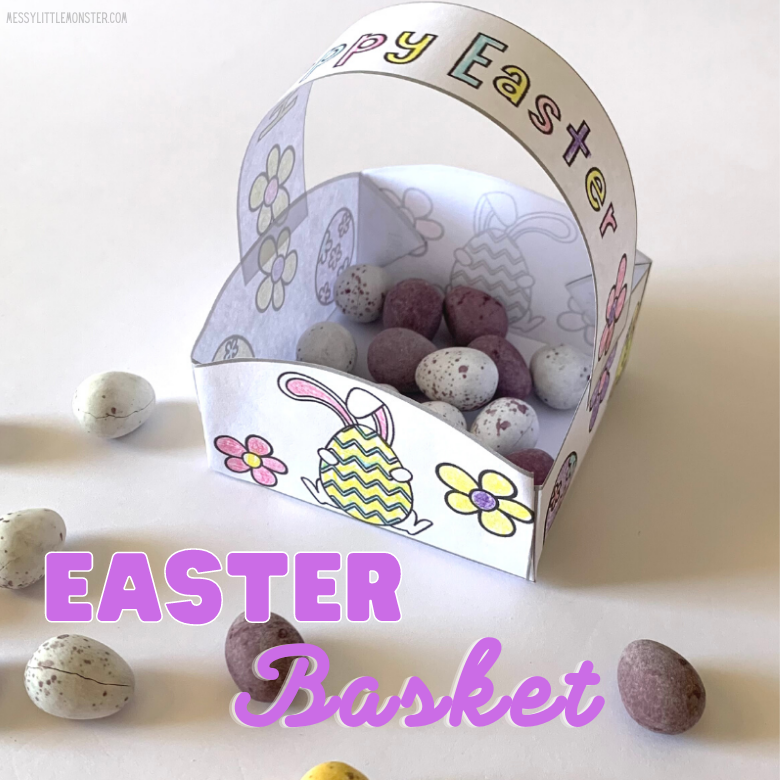
Gone are the days of complicated crafts requiring numerous supplies. In today’s digital age, printable crafts have become increasingly popular due to their ease of use and instant accessibility. Specifically, printable Easter basket craft templates offer a hassle-free approach to creating charming and personalized baskets that serve as perfect vessels for those anticipated Easter egg hunts or as delightful table centerpieces.

The process is simple and exciting. First, you’ll need to choose a design. The internet is awash with various styles—from cute bunnies and chicks to elegant floral motifs—catering to all ages and preferences. Once you’ve settled on a design that catches your eye, you can typically download and print it out directly from a website.

Next comes the crafting adventure! You’ll need scissors for cutting, glue or tape for assembly, and maybe some additional decorations like glitter, stickers, or colored markers to give your Easter basket that special touch. Even better, many templates come with easy-to-follow instructions, making the assembly process straightforward so that even younger children can participate with only a bit of adult supervision.

Creating printable baskets often involves printing out the template on card stock paper for better durability. After cutting out the shape along the designated lines, you fold it to form the basket shape and secure it using glue or tape. A handle is usually included in the design—a strip of paper that gets attached to either side of the basket for easy carrying during egg hunts.

What sets this craft apart is the level of personalization it offers. Children can select colors and patterns they love most or go wild with decorations that reflect their personality—making their Easter basket one-of-a-kind. This activity doesn’t just result in a handmade item but also instills pride in creation as well as cultivates motor skills and artistic sense amongst young participants.

Not only is this craft activity economical—with most templates available for free or at a low cost—but it’s also environmentally friendly; these baskets can often be recycled after use or kept as souvenirs from year to year.

In conclusion, printable Easter basket craft activities provide a perfect blend of ease, fun, and creativity that can bring together both kids and grown-ups. This Easter season, create more than just memories—craft unique baskets that will fill your home with warmth and festive cheer. Whether enjoyed as part of an egg hunt or as eye-catching decor, these baskets are sure to add a personal touch to your holiday celebrations.

Christmas Craft Fun with Christmas Puppets

The magic of Christmas isn’t just bound to the day itself—it’s in the air throughout the festive season, enticing us to indulge in traditions and make merry memories. One such way to channel the Yuletide spirit is through crafting, and what better way to do this than creating Christmas puppets with your children or students, as suggested by Teach Starter’s blog.

Teach Starter, an educational resource site, offers a delightful craft project that can adorn your festive classroom or home while engaging kids in a hands-on activity. This project is about designing and making charming Christmas puppets that can act as terrific tools for imaginative play and storytelling during the holidays.

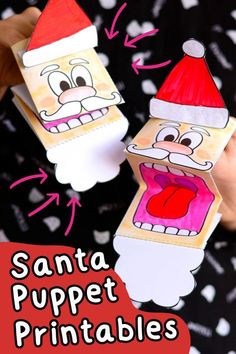
The concept is straightforward and versatile enough for customization. It involves crafting puppets based on popular Christmas characters—Santa Claus, reindeer, snowmen, elves, or other beloved holiday figures. Not only do these creations provide a personal touch to your Christmas decor, but they also encourage creativity among children as they bring their unique puppet characters to life.

Better still, puppet-making can be an excellent opportunity for learning. Children can practice their fine motor skills with cutting and gluing while also learning about symmetry when designing puppet faces or costumes. It offers an interactive way to understand character traits by discussing what makes each Christmas character unique.

Incorporating puppet plays into the classroom or family activities can become a cherished holiday tradition. Kids can craft stories that demonstrate the values of giving, kindness, and holiday cheer—with their hand-made puppets as the stars of the show.

This blog post from Teach Starter doesn’t merely provide a festive craft idea—it serves as an inspiration for educators and parents looking for ways to involve children in creative play during Christmas time. It underlines that the joy of Christmas is in creating something unique that brings smiles to faces young and old alike.

So why not try your hand at making some Christmas puppets this season? Dive into your art supplies: paper bags, socks, felt, yarns of vibrant colors—whatever tickles your fancy. As you watch each quirky character come alive at the hands of excited little crafters, you’ll realize that this simple activity holds within it the true merry-making essence of Christmas.

Unleash the Power of Creativity with Giant Colouring Sheets

In a world where digital screens are becoming increasingly predominant in our daily lives, the charm and joy of simple activities like colouring can often be overlooked. However, it is precisely these humble pursuits that offer a respite from the electronic buzz and provide a canvas for creativity to flourish. Enter the giant colouring sheet – an innovative approach to colouring that magnifies the experience to an entirely new scale.

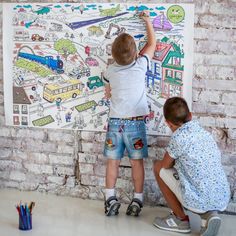
Giant colouring sheets are not just oversized pieces of paper; they are gateways to collaborative artistic expression, designed to engage individuals, families, or even entire classrooms in a collective creative endeavour. These massive canvases come adorned with a variety of intricate patterns and scenes waiting to be brought to life with colour. They invite enthusiastic participants of all ages to contribute their unique touch to a larger masterpiece.

The advantages of integrating giant colouring sheets into recreational and educational settings are manifold. For children, they serve as tools that bolster fine motor skills, improve concentration, foster teamwork, and encourage artistic exploration. Adults aren’t left out either; participating in this artful activity can significantly reduce stress levels and serve as a meditative escape from the hustle and bustle.

Teach Starter, an online platform renowned for its resources tailored for educators and parents, has comprehensively blogged about the benefits and applications of giant colouring sheets (https://www.teachstarter.com/au/blog/giant-colouring-sheet/). Their blog serves as both an informative guide and an inspiration portal, demonstrating how these colossal colouring pages can transform both classrooms and living rooms into vibrant hubs of creativity.

In conclusion, the renaissance of classic activities like colouring is evidenced by creative innovations such as giant colouring sheets. By amalgamating individual efforts into an expansive work of art, these sheets go beyond simple pastimes to nurture imagination, teamwork, and mindfulness. As resources like Teach Starter continue to illuminate the virtues of such activities through their insightful blogs, we are reminded that sometimes the best way to enhance creativity is simply to increase its canvas.

Endearing Mother’s Day Craft Ideas for Kids

Mother’s Day is a special time to celebrate the incredible women in our lives who nurture, support, and love us unconditionally. It’s a day for children to express their gratitude and love for their mothers through heartwarming gestures and gifts. Crafts made by little hands carry a special significance, representing both the creativity and affection of the child. The website Teach Starter has compiled an assortment of lovable Mother’s Day craft ideas that are perfect for kids wanting to give something unique and handmade.

These craft ideas are designed to be not just fun, but also easy for kids to create with just a little help from a teacher or guardian. Here’s a brief glimpse into what Teach Starter suggests:

1.Mother’s Day Coupon Book: A personalized coupon book can include promises like an extra chore, breakfast in bed, or uninterrupted nap time—precious gifts any mother would treasure.

2.Handmade Cards: Encouraging kids to make their own Mother’s Day cards allows them to express themselves through artwork and personal messages, making each card as unique as the child who created it.

3.Fingerprint Art: Using their fingerprints, children can create a variety of art such as trees, animals, or even spell out ‘LOVE’, making this type of craft both adorable and highly customizable.

4.Flower Pots: Decorating flower pots and planting some seeds offer a living gift that grows much like the love between a mother and her child.

5.Homemade Jewelry: Teach Starter offers ideas for easy-to-make jewelry items using simple materials like beads and string, which can make for precious keepsakes.

6.”Why I Love You” Jars: Filled with notes that explain the many reasons they love their mom, this is a heartfelt gift that moms can turn to whenever they need a smile.

Each of these crafts adds a personal touch that store-bought gifts often lack. Involving kids in the creation of these projects not only results in wonderful presents but also provides valuable moments of connection and learning. Crafting allows children to work on fine motor skills, problem-solving, and gives them an opportunity for self-expression.

Teach Starter champions these ideas because they understand the importance of fostering creativity and sentimentality in young children – especially when it comes to celebrating their mothers on Mother’s Day. Encouraging children from an early age to make something with love and care not only results in beautiful mementoes but also ingrains in them the value of giving, thoughtfulness, and appreciation for others.

To explore all the delightful Mother’s Day craft ideas mentioned here (and more), be sure to visit Teach Starter’s blog post on “Lovable Mother’s Day Craft Ideas for Kids.” Prepare yourself for an outpouring of imagination and tenderness from your little ones as they set out to create their perfect Mother’s Day gifts!

Light Up Your Classroom with Free Downloadable Light Box Inserts!

Are you looking for a way to brighten your classroom and engage your students? Teach Starter has come up with a wonderful solution that combines creativity with learning – downloadable light box inserts that you can print and showcase in your classroom!

Light boxes have become quite a trend in home decor, but they also have a place in the educational setting. They serve not only as an attractive feature in your classroom but also as a versatile tool for instruction and classroom management. The softly lit background with clear, bold text or images can capture students’ attention effectively, making them perfect for emphasizing key points, displaying learning goals, or just setting a warm, welcoming environment.

The good news is that Teach Starter is offering 21 freely downloadable light box inserts, each designed with educators and classrooms in mind. This blog post showcases some of the most creative and functional insert designs you can start using today.

The selection includes a variety of themes and messages such as inspirational quotes to motivate your class, calendars to keep track of important dates, birthday messages to celebrate students’ special occasions, and many more. Each insert comes in a standard size to fit most light boxes, and the designs are colorful and vibrant bringing energy and life into any classroom space.

Not only do these inserts look great, but they’re also an excellent resource for teachers aiming to create a dynamic learning environment. Such visually appealing tools can be incorporated into daily teaching routines or used during special events at school. Moreover, it provides an opportunity for teachers to discuss themes like positivity, motivation, time management, and recognition with their students.

What’s even better is the ease of use that comes with these light box inserts. Simply download the designs you like from Teach Starter’s website, print them on transparent sheets or regular paper if you prefer a non-illuminated option, and slide them into your light box – it’s that easy!

Teach Starter has thoughtfully put together these resources so teachers can save time while still providing an engaging class experience. So why not take advantage of these delightful educational tools? Head over to their blog using the provided link (https://www.teachstarter.com/gb/blog/21-downloadable-light-box-inserts-gb/) to browse through the collection of free downloadable light box inserts. Light up your classroom today and watch your students’ faces light up too!